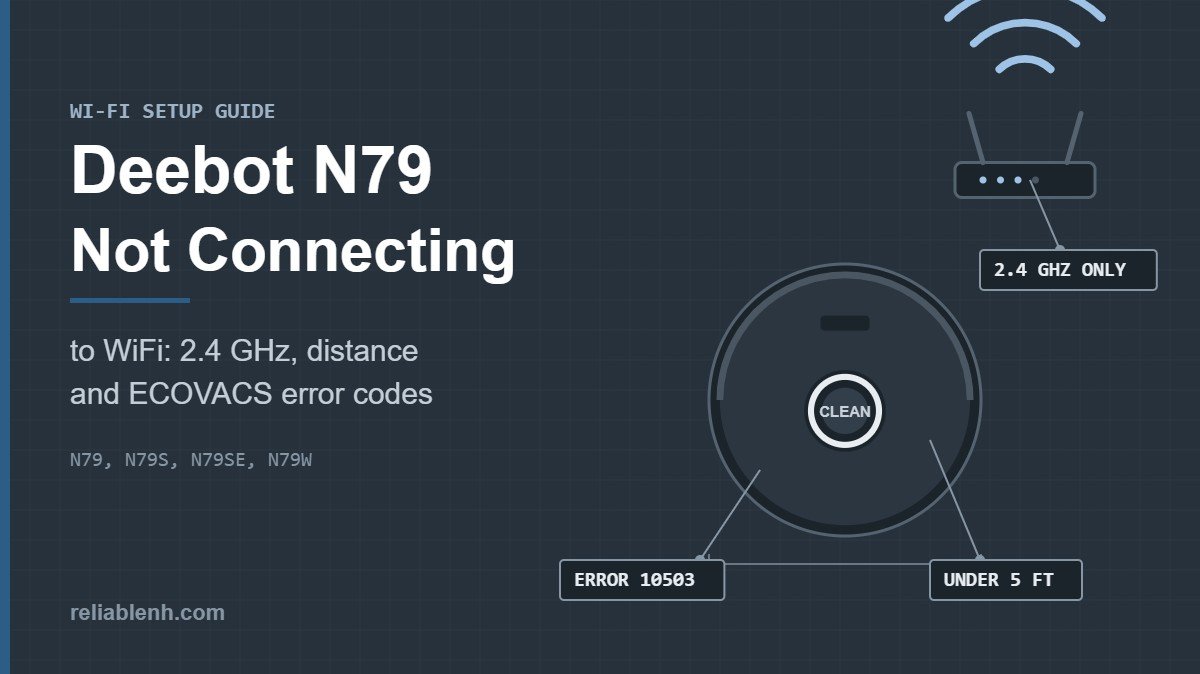
Deebot N79 not connecting to WiFi? The usual cause is the network, not the robot. The N79 family only joins a 2.4 GHz network, so connect your phone to the 2.4 GHz band, switch off mobile data, keep the robot within about 5 feet of the router during setup, and make sure the network is visible, uses no VPN or web login page, and has MAC address filtering turned off. Then restart the robot and the router and add the robot again in the ECOVACS HOME app. If the app shows an error number, the table below gives the fix for each code.
The DEEBOT N79 line is several years old, but plenty of these robots are still running, and a Deebot N79 not connecting to WiFi is the complaint we hear most about them. This guide collects ECOVACS’s own setup rules and network error codes in one place, explains why dual-band and mesh routers cause trouble, and covers what to do when a robot that used to connect now shows as offline.
Table of Contents
Which DEEBOT N79 Do You Have?
ECOVACS sold the N79 in several versions. They connect to the same ECOVACS HOME app, but ECOVACS publishes separate manuals, so check the label on the underside of your robot before following model-specific steps.
| Model | Manual | Notes |
|---|---|---|
| DEEBOT N79 | DEEBOT N79 instruction manual | The original model; its manual includes a Wi-Fi module section |
| DEEBOT N79S and N79SE | N79S, SE and W instruction manual | App-connected versions, set up through the ECOVACS HOME app |
| DEEBOT N79W and N79W+ | N79S, SE and W instruction manual | Retail versions that share the N79S manual |
For the buttons, beep codes and lights on these robots, see our DEEBOT N79 manual and quick reference. If you want a broader picture of the N79S before deciding whether to keep troubleshooting, our Deebot N79S overview covers its features.
Deebot N79 Not Connecting to WiFi? Check These Network Rules First
ECOVACS lists a small set of network conditions. If any one of them is not met, setup fails no matter how many times you retry, so check all of them before you start.
| Requirement | What ECOVACS asks for | How to check |
|---|---|---|
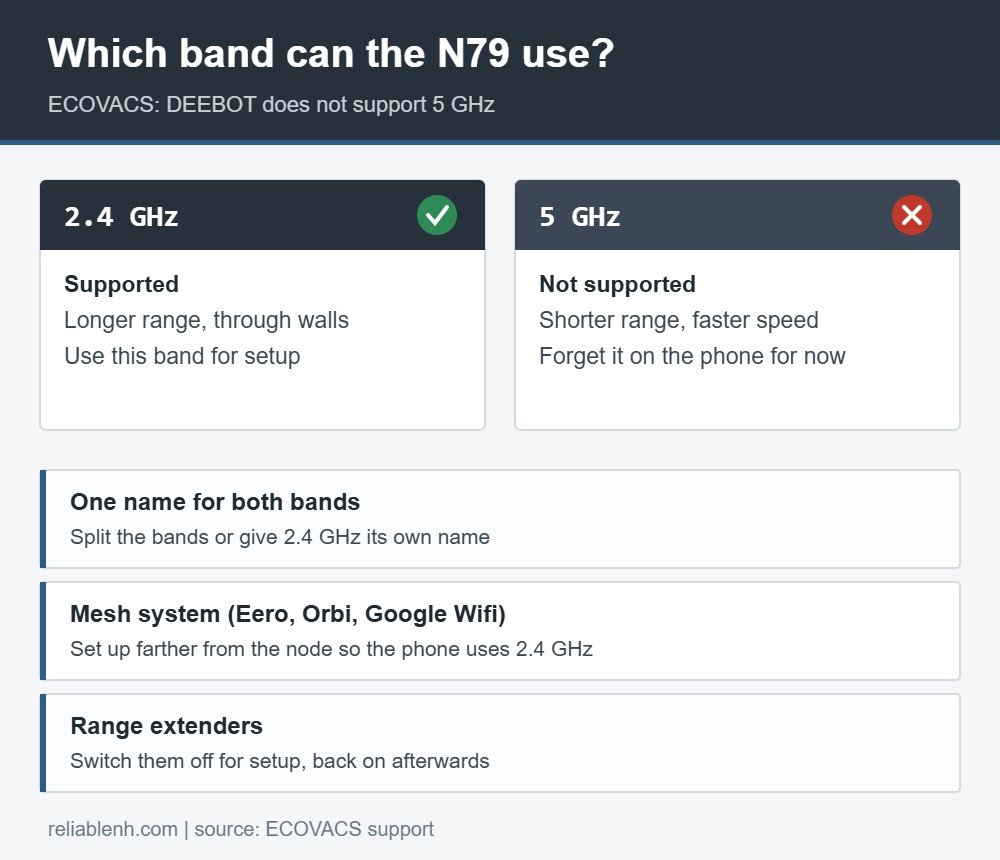
| Band | 2.4 GHz only; DEEBOT does not support 5 GHz | Router settings or the network name your phone shows |
| Distance during setup | Robot less than 5 ft from the router and your phone | Carry the robot to the router for setup |
| Network name | Visible; a hidden network cannot be used | Router wireless settings |
| Network type | No VPN, proxy server or web-page login (as in hotels) | Turn off any VPN app on your phone |
| MAC address filtering | Disabled | Router security settings |
| Phone | On your home Wi-Fi with working internet; mobile data off | Open a web page on the phone over Wi-Fi |
| Account | ECOVACS account with the correct, case-sensitive password | Log out and back in to the app |
How to Connect the DEEBOT N79 to WiFi, Step by Step
Work through the steps in order. Most failed setups come from steps 2 and 3, where the phone quietly stays on the 5 GHz band or switches to mobile data.

- Charge and switch on the robot. The power switch on the robot has to be on, and setup goes more smoothly with a charged battery.
- Put your phone on the 2.4 GHz network. If your router broadcasts two networks, join the 2.4 GHz one. If the phone keeps jumping to 5 GHz, tell it to forget the 5 GHz network for now; you can rejoin it after setup.
- Turn off mobile data and any VPN on the phone, so the app talks to the robot over Wi-Fi only.
- Move the robot close to the router. ECOVACS suggests less than 5 feet from the router and your phone for the N79S, and within about 3 m of good coverage in its error code guide.
- Restart the router and the robot. Switch the robot off at its power switch, wait a few seconds and switch it on again.
- Open the ECOVACS HOME app and tap Add Robot. Allow the location permission the app requests, then follow the on-screen tutorial for your model.
- Enter the Wi-Fi password carefully. It is case sensitive. A wrong password produces the “unable to connect” codes listed below.
- Stay on the robot’s setup network until the progress bar passes 50%. During setup the phone joins a temporary network named like “ECOVACS_xxxx”; leaving it too early causes error 10503.
Once the robot is online, you can reconnect the phone to 5 GHz. The robot keeps using the 2.4 GHz band.
Dual-Band, Mesh and Extender Networks
Modern routers often hide the two bands behind one network name. That is convenient for phones and laptops, but it is the most common reason behind a Deebot N79 not connecting to WiFi, because the phone sends the robot the details of a band it cannot use.
- Single name for both bands. If your router lets you split the bands, give the 2.4 GHz band its own name for setup.
- Mesh systems (such as Eero, Google Wifi or Netgear Orbi). ECOVACS notes that these use one signal for both bands and do not let you choose. Its workaround is to take the robot and phone farther from the router node, as far as you can while still connected, because the 2.4 GHz band reaches further than 5 GHz. At that distance the phone is likely on 2.4 GHz.
- Range extenders. ECOVACS suggests turning the extenders off and connecting directly to the main router. After setup succeeds, switch the extenders back on and the robot can work in the areas they cover.
- Several separate routers. If each router has its own name and password, connect the robot to each one in turn so it can move between them. Expect a short offline moment when it switches.
ECOVACS Network Error Codes and Fixes
When setup fails, the ECOVACS HOME app usually shows a number. These are the codes ECOVACS documents for network setup:
| Code | Meaning | What to do |
|---|---|---|
| 10016, 10017 | Device configuration timed out | Turn off mobile data, check the phone is on the robot’s Wi-Fi, restart the robot and router |
| 2, 10002, 10024 | Program error | Reopen the app, restart the robot, try setup again |
| 3 | Invalid login | Log in to your account again, then repeat setup |
| 10000, 10020, 10021 | Mobile device disconnected | Confirm the phone and home Wi-Fi both have internet |
| 10006, 10011 | Network setup timed out | Confirm the phone and home Wi-Fi both have internet |
| 10010, 10018, 10025 | Robot cannot join the network | Move closer to the router, check the password, use 2.4 GHz and the same network as the phone |
| 10503 | Setup information not received in time | Stay on the “ECOVACS_xxxx” network until the progress bar passes 50% |
For any other code, ECOVACS’s advice is simply to try again.
Samsung phones and error 10503
During setup the robot acts as a small Wi-Fi access point without internet. Some phones refuse to stay on a network without internet and switch to mobile data, which breaks the handoff and produces 10503. ECOVACS names Samsung Galaxy S8, S9, S10 and S10+, A8 and A10 phones, where the setting is called “Switch to mobile data”, and older models such as the Galaxy S4, where it is “Auto Network Switch”. Turn that setting off during setup.
Deebot N79 Shows Offline After Working Before
A robot that connected fine for months and now appears offline usually has not lost its Wi-Fi module. ECOVACS lists these causes:
- The robot is switched off, not switched on, or has a low battery.
- The router has failed or the internet connection is down.
- The robot got stuck during a job, could not return to the dock and powered itself off to protect the battery.
- The robot was moved off the dock and is not sitting on the charging contacts, so it powered off.
- The robot is somewhere with weak or no Wi-Fi coverage.
- The Wi-Fi name or password changed, or a router setting changed after setup (hidden network, fixed IP address, MAC address filtering).
After replacing a router, the robot reconnects by itself if the new router uses the same network name and password. If you changed either, run the connection process again. ECOVACS notes that on DEEBOT models with a Wi-Fi LED, a steady light means connected and a flashing light means not connected.
Turn the N79 Wi-Fi Module Off and On
If setup keeps failing on a network that meets every rule above, the N79 manuals describe switching the robot’s Wi-Fi module off and on again. With the power switch on and the robot sitting on its charging dock, hold the AUTO button until the robot beeps three times; the manuals give slightly different hold times by model, so check yours. Then switch the robot off and on at the power switch to turn Wi-Fi back on, and run setup again. Our Deebot N79 troubleshooting guide covers the other faults these robots report, such as the red light and beep codes.
When to Stop Troubleshooting
If your Deebot N79 not connecting to WiFi problem survives every step on this page, remember that the N79 is a discontinued model, and app support for older robots can change over time. If the robot does not appear in the ECOVACS HOME app’s Add Robot list at all, or setup fails on a network that meets every requirement, contact ECOVACS support before spending more time on it.
The robot still cleans without Wi-Fi: the AUTO button and the included remote control start and schedule jobs on their own. If you want app control, mapping or voice assistants, a newer robot is the realistic route. Our roundup of ECOVACS robot vacuums, the DEEBOT M80 Pro review and our look at robot vacuums with mapping are good starting points. If you also own a Roomba with the same problem, Roomba not connecting to Wi-Fi covers iRobot’s version of these steps, and are robot vacuums worth it helps if you are weighing a replacement. If you are open to another brand, see which Roomba to buy.
Deebot N79 WiFi FAQ
Why is my Deebot N79 not connecting to WiFi?
The most common reasons are a 5 GHz or combined-band network, a phone that switches to mobile data during setup, and a robot too far from the router. The N79 family needs a visible 2.4 GHz network.
Does the DEEBOT N79 work with 5 GHz WiFi?
No. ECOVACS states that DEEBOT does not support 5 GHz Wi-Fi. Connect your phone to the 2.4 GHz band for setup.
How close should the N79 be to the router during setup?
ECOVACS recommends less than 5 feet from the router and your phone for the N79S. Once connected, the robot can work anywhere with good 2.4 GHz coverage.
What does error 10503 mean on a DEEBOT?
The robot did not receive the network details in time. Stay connected to the robot’s “ECOVACS_xxxx” network until the progress bar passes 50%, and turn off any phone setting that switches to mobile data.
How do I connect my Deebot to a mesh WiFi system?
Move the robot and phone farther from the mesh node so the phone uses the 2.4 GHz band, or turn off extenders and connect directly to the main router, then switch the extenders back on.
Why does my N79 show offline in the app?
Check that the robot is switched on and charged, that it is on its dock, and that the Wi-Fi name, password and router settings have not changed since setup.
Can I use the DEEBOT N79 without WiFi?
Yes. The AUTO button and the remote control run and schedule cleaning without the app.
Do I need to reset the N79 to change WiFi networks?
If the new network has the same name and password, the robot reconnects by itself. If either changed, run the connection process in the app again.
Sources
Reliable Technologies is independent of ECOVACS; DEEBOT is an ECOVACS Robotics trademark. Requirements and error codes come from ECOVACS support:
