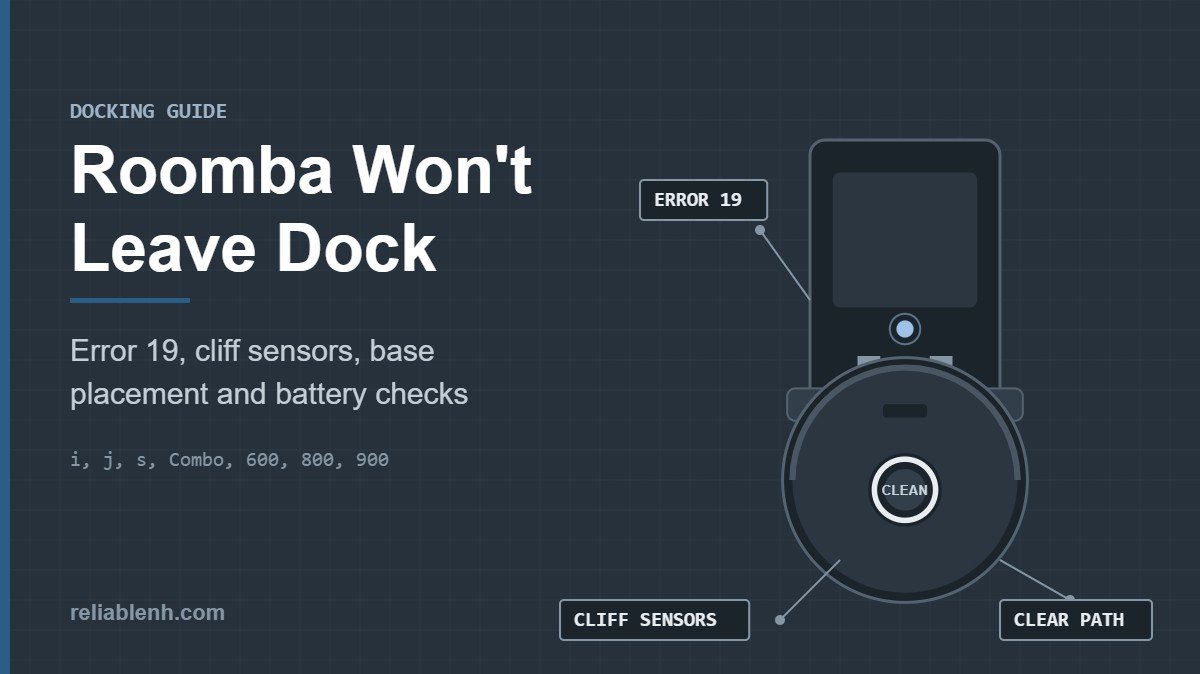
If your Roomba won’t leave dock after you press CLEAN, check three things in order: whether the light ring is pulsing red (the battery is still too low to start), whether the robot announces Error 19 (it cannot undock, usually because of clutter or a cliff sensor reading near the base), and whether the Home Base sits on a hard, level floor against a wall with a clear path in front. Clear the area, wipe the cliff sensors, reboot the robot, and if it still stays put, move the Home Base to another spot.
A Roomba that sits on its base and refuses to start is one of the most frustrating problems, because there is often no obvious message. This guide matches what you see to the likely cause, walks through iRobot’s fixes for the undocking error on each series, and covers the less obvious reasons, from a dark rug in front of the dock to a schedule that runs on the wrong clock.
Table of Contents
Roomba Won’t Leave Dock: Match the Symptom
Start with what the robot is doing. Each row points to a different fix, so this saves you from moving the dock when the battery is the real issue.
| What you see | Likely cause | What to do |
|---|---|---|
| Light ring pulsing red, robot does not move | Battery charging, not yet enough to start | Leave it on the base and try again later |
| Voice says “Error 19” or “Error one nine” | Undocking problem, often a cliff sensor reading near the base | Clear the dock area, check placement, reboot |
| Error 43 when you press CLEAN | The robot is in the dock’s beam or default Keep-out Zone, but off the base | Start from the base itself or from open floor |
| Backs off, stops, then returns to the base | A cliff sensor reads a drop: dirty sensor, dark mat or nearby stairs | Clean the sensors, move dark mats, check stair distance |
| Scheduled job does not start on a non-Wi-Fi model | The clock was reset, often after a reboot | Set the clock again |
| Scheduled job does not start on a Wi-Fi model | Schedule switched off or robot offline | Check the schedule and the connection in the app |
| Red light on the Clean Base | A base error such as a full bag | Fix the base first |
The last row has its own guide: Roomba red light on base explains every Clean Base and dock light.
Fix Error 19: Undocking Problem
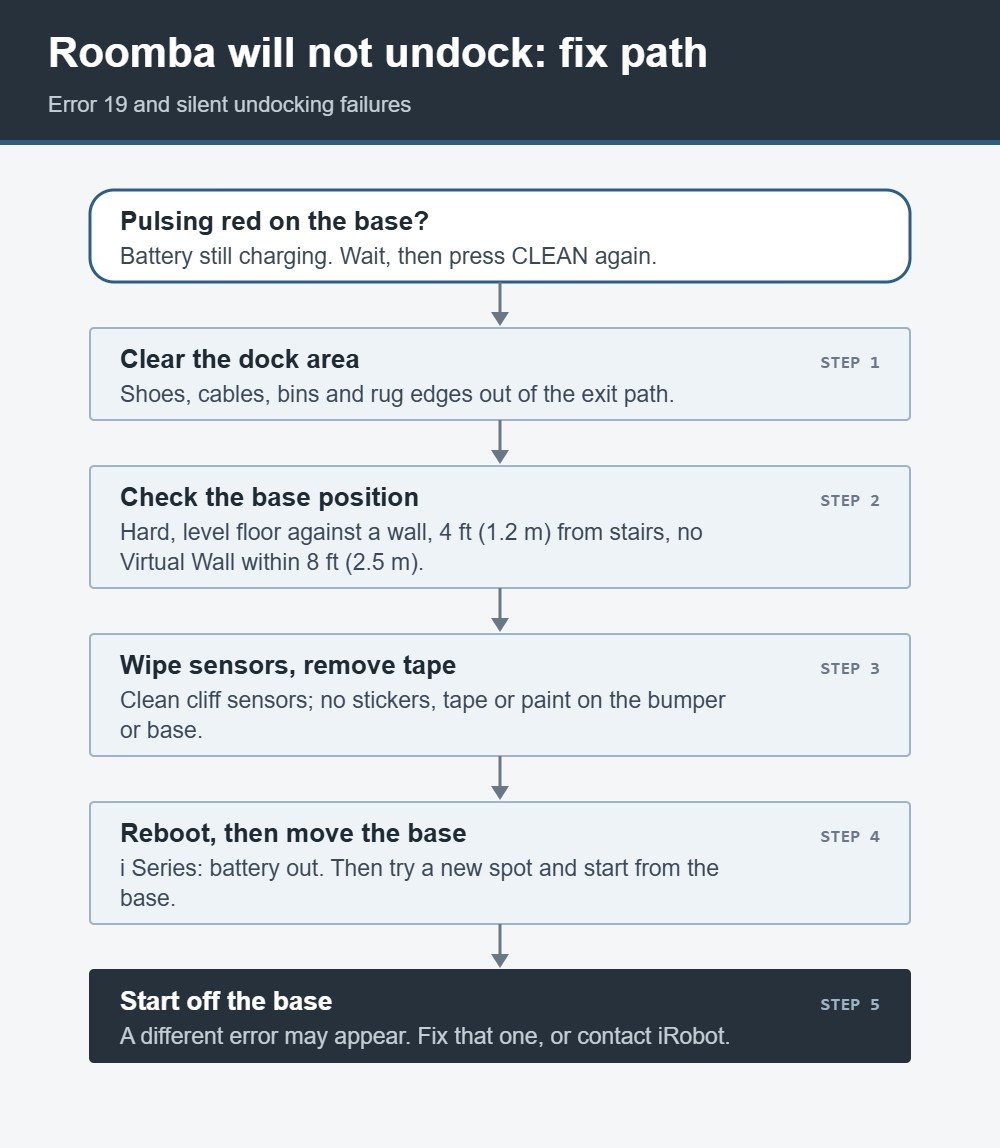
Error 19 is the message a Roomba gives when it cannot get off its dock. On the i Series the voice says “Undocking problem. Clear obstacles then press CLEAN.” The 900 Series says “Error nineteen”, and Wi-Fi 600 and 800 Series robots say “Error one nine”. On the older series, iRobot explains that the robot is sensing an activated cliff sensor near the docking area.
i Series steps
- Clear anything in front of and around the Home Base, then press CLEAN.
- If the message comes back, reboot the robot by removing the battery, move the Home Base to a different spot in the home and start the robot from the base.
- If it still fails, start the robot off the base. iRobot notes that this can make the robot report a different error, which then tells you the real problem.
Roomba 600, 800 and 900 steps
- Remove clutter around and near the Home Base.
- Keep every Dual Mode Virtual Wall, Virtual Wall, Lighthouse and second Home Base 8 ft (2.5 m) or further from the base, since their infrared beams interfere.
- Check that the base sits on a hard, level surface against a wall, with a clear path to it and no closer than 4 ft (1.2 m) to stairs.
- Remove stickers, tape or paint from the bumper and the Home Base.
- Reboot the robot. The button and hold time for each series are in our Roomba reboot guide.
- If Error 19 continues after the reboot, contact iRobot Customer Care.
Set Up the Home Base So Roomba Can Leave It
When a Roomba won’t leave dock areas in one particular room but works elsewhere, the base position is the likely cause. The robot reverses off the base, turns and drives away, and each of those moves needs open floor.
| Check | Target | What goes wrong otherwise |
|---|---|---|
| Surface | Hard and level, base against a wall | The base shifts or the robot sits at an angle |
| Path in front | Clear of shoes, cables, bins and rug edges | The robot bumps and reports an undocking problem |
| Stairs | 4 ft (1.2 m) or more from the base | A cliff sensor triggers as the robot backs out |
| Infrared devices | Virtual Walls, Lighthouses and other bases kept 8 ft (2.5 m) or further away | Beam interference near the dock |
| Bumper and base | No stickers, tape or paint | Sensors read the covered area incorrectly |
The dock area also matters for Roomba Error 43, which appears when a job starts inside the dock’s beam or Keep-out Zone, so a clear, well-placed base solves both messages.
Clean the Cliff Sensors and Check the Floor
Cliff sensors are the small windows on the underside of the robot, near the front edge. They look down at the floor and stop the robot before it drives off a step. If one is dusty, or the floor in front of the base looks like a drop to it, the robot backs off the dock, stops and treats the area as unsafe.
- Lay the robot upside down on a towel.
- Wipe each cliff sensor window with a clean, dry cloth or a melamine sponge.
- Check the floor directly in front of the base. A very dark mat or rug there can read as a drop on some models. Move it, or move the base to a lighter floor.
- Put the robot back on the base and press CLEAN.
Deep carpet in front of the base can cause trouble of its own, because the robot needs to climb onto it right after undocking. For more on pile height and transitions, read does Roomba work on carpet.
When the Battery Keeps the Roomba on the Dock
A light ring pulsing red while the robot sits on the base means it is charging but does not yet have enough power to clean. The robot is doing what it should. Give it time and try again.
If this happens every day, the battery may be wearing out: it charges to a level that looks fine but drops quickly once the motors start. Signs and replacement steps are in our Roomba battery replacement guide. If the robot does not seem to charge at all, start with Roomba charging lights to confirm the base is delivering power, then move on to why a Roomba won’t charge.
Scheduled Jobs That Do Not Start
Sometimes the complaint is not that the Roomba won’t leave dock when you press CLEAN, but that it does not start at the scheduled time. The cause depends on the model.
Models without Wi-Fi
On non-Wi-Fi 500, 600 and 700 robots, a reboot resets the clock while keeping the schedule. The schedule then runs on the wrong time, or appears not to run at all. Set the clock again with the robot’s CLOCK button after any reboot or battery change.
Models with Wi-Fi
Open the app and confirm the schedule is switched on and set to the days you expect. Then check that the robot is online. If it keeps dropping off your network, our Roomba Wi-Fi troubleshooting guide covers bands, distance and router settings.
Start Off the Base to Find the Real Error
If nothing above works, iRobot suggests a simple test: lift the robot off the base, set it down on open floor a few feet away and press CLEAN. A robot that refuses to undock sometimes reports a different error once the dock is out of the picture, such as a wheel, brush or sensor fault. Find that number in the full list of Roomba error codes and fix it, then put the robot back on the base.

The opposite problem, a robot that leaves the dock fine but cannot find its way back, has its own causes. Our Roomba won’t dock guide covers it step by step.
Roomba Won’t Leave Dock After a Move or New Furniture
A robot that undocked without trouble for months and then stops after a room change is reacting to its new surroundings. Three changes cause most of these cases:
- The base moved. Mapping robots use the base as a fixed reference point on the map. After moving it, start a job from the base and let the robot update the map, or run a new mapping job if room boundaries look wrong in the app.
- New furniture or a new rug sits in the exit path. A chair leg or the thick edge of a rug right in front of the base is enough to block the reverse-and-turn move.
- The base now faces a different floor. A dark mat, a step down or a reflective surface near the base changes what the sensors read.
Put the base back where it worked, or give the new spot the same open space, and test with a short job before you rearrange anything else.
Quick Checks Before You Contact iRobot
If your Roomba won’t leave dock after every fix on this page, run through this list once more before you contact iRobot Customer Care, so you can tell them exactly what you tried:
- Battery charged: the light ring no longer pulses red.
- Dock area clear on both sides and in front, base on a hard, level floor.
- Cliff sensors wiped and no dark mat directly in front of the base.
- No Virtual Wall, Lighthouse or second base close to the dock.
- Robot rebooted, and a test run started off the base to see if a different error appears.
Keep the charged robot nearby during the call, along with the serial number printed underneath it and your receipt if the robot is still under warranty.
Roomba Won’t Leave Dock FAQ
Why won’t my Roomba leave the dock?
The common reasons are a battery still charging (pulsing red light), clutter or a cliff sensor reading near the base (Error 19), and a base placed too close to stairs or other infrared devices.
What does Error 19 mean on a Roomba?
Error 19 means the robot has a problem undocking. On older series iRobot says the robot senses an activated cliff sensor near the docking area. Clear the area, check the base position and reboot.
Why does my Roomba back off the dock and then return?
A cliff sensor is probably reading a drop. Clean the sensors, move any dark mat away from the front of the base, and keep the base 4 ft (1.2 m) or more from stairs.
Why is my Roomba pulsing red and not moving?
The battery is charging but does not have enough power to start a job yet. Leave the robot on the base. If it happens daily, the battery may need replacing.
Why does my Roomba not start on schedule?
On non-Wi-Fi models, a reboot resets the clock, so the schedule runs at the wrong time. On Wi-Fi models, check that the schedule is on and that the robot is online.
Can a Virtual Wall stop my Roomba from leaving the dock?
Yes. iRobot links Error 19 to infrared interference from Virtual Walls, Lighthouses or other bases within 8 ft (2.5 m) of the Home Base.
Should I move the Home Base?
If clearing obstacles and a reboot do not help, iRobot suggests moving the Home Base to a different location and starting the robot from it.
Does tape on the bumper cause undocking problems?
It can. iRobot lists stickers, tape and paint on the bumper or the Home Base as things to remove when the robot reports Error 19.
Sources
Reliable Technologies is independent of iRobot; Roomba and Home Base are iRobot Corporation trademarks. The steps here follow these iRobot support articles:
