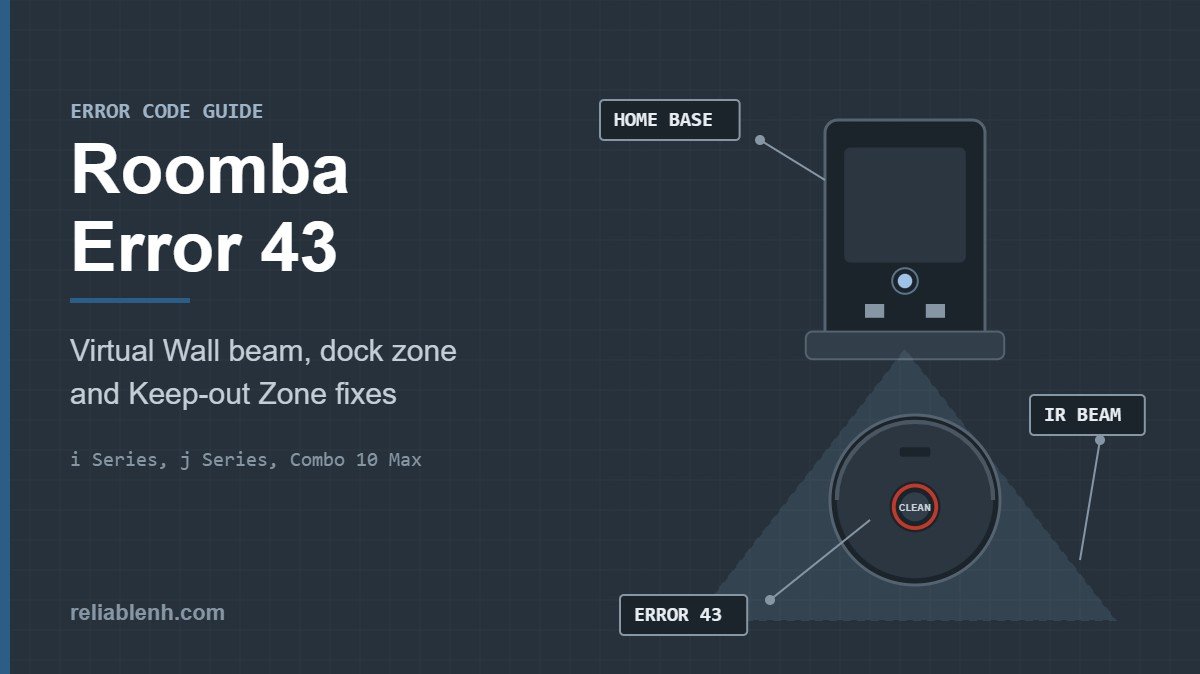
Roomba Error 43 means the robot is in a spot it has been told to avoid. On an i Series it is stuck in the infrared beam of a Virtual Wall or the Home Base; on a j Series or Combo 10 Max it started a job inside a Keep-out Zone, including the small zone the robot sets around its dock by default. Lift the robot to a new spot and press CLEAN. If it keeps happening near the dock, give the Home Base more open space or move it, and turn any Virtual Walls so they do not face each other.
Roomba Error 43 is a navigation message, not a hardware fault, so nothing needs cleaning or replacing. The fix is about where the robot starts and what invisible boundaries surround it. This guide explains the message on each series, how the Home Base and Virtual Wall beams work, how Keep-out Zones trigger it, and how to set up the dock area so it stops coming back.
Table of Contents
What Roomba Error 43 Means on Each Series
iRobot uses the same number for two related situations, depending on the robot generation. Both come down to a start position the robot is not allowed to clean from.
| Series | iRobot’s description | Quick fix |
|---|---|---|
| i Series | Stuck in the infrared beam of a Virtual Wall or Home Base | Move the robot and press CLEAN. Check the Virtual Walls and dock space. |
| j Series and Combo 10 Max | Started a job in a Keep-out Zone; a small zone around the dock is set by default | Move the robot out of the zone, then press the button to restart. |
If your robot shows a different number, look it up in our Roomba error code tables. Docking messages such as 18 and 19 look similar but have their own fixes, listed further down this page.
How to Fix Roomba Error 43, Step by Step
Most cases of Roomba Error 43 clear at the second step. The rest of the list deals with the setups that make Roomba Error 43 return day after day.

- Move the robot. Lift it and set it down a few feet away, outside any beam or zone. Carry it rather than pushing it across the floor.
- Press CLEAN. The robot restarts the job from the new position.
- Check your Virtual Walls. If two Virtual Wall devices point at each other, the robot can get trapped between their beams. Turn them so their beams do not cross.
- Clear the area around the Home Base. iRobot asks for a clear, uncluttered space with room on all sides of the base. Move shoes, bins and cables away.
- Check your Keep-out Zones (j Series and Combo 10 Max). Open the map in the app and make sure none of your zones covers the place where the robot sits when it starts.
- Start jobs from the dock. Let the robot drive off the base by itself instead of placing it next to the base and pressing CLEAN.
If the robot shows Error 43 at a spot far from the dock and from any Virtual Wall, a reboot clears any stuck state and keeps your maps. The hold time for each series is in our Roomba reboot guide.
Error 43 Near the Home Base
The Home Base sends out infrared signals so the robot can find it. On the i Series those signals form a field in front of and around the base, and a robot that starts cleaning while it sits in that field, but not on the charging contacts, can report Error 43. On the j Series the robot achieves something similar with the small Keep-out Zone it places around the dock by default.
That is why the error often appears after someone lifts the robot off the base mid-job, sets it down a short distance away and presses CLEAN. Starting from the base itself, or from well outside the dock area, avoids it.
Where to put the Home Base
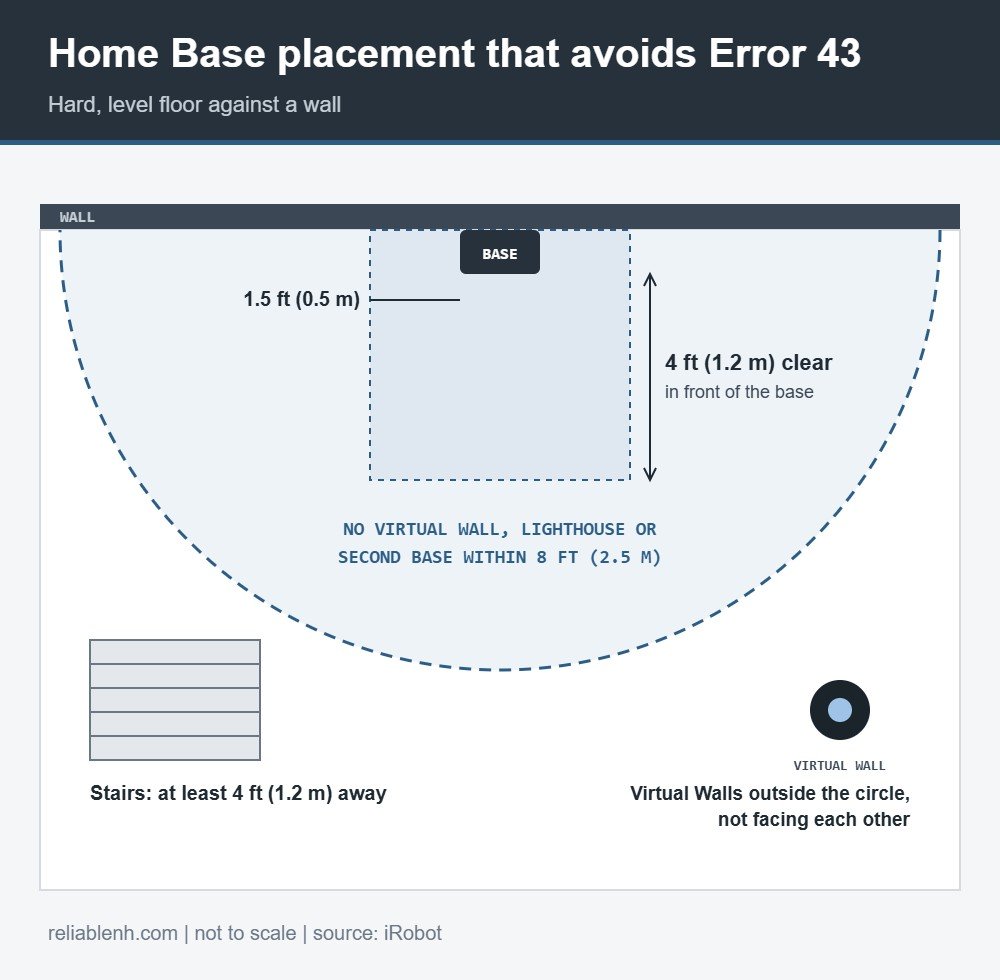
Dock placement is the long-term fix for Roomba Error 43 near the base. The figures below combine iRobot’s Error 43 advice with its placement rules for the Home Base:
| Placement rule | Distance or condition | Why it matters |
|---|---|---|
| Floor | Hard, level surface, back against a wall | Keeps the base steady while the robot docks |
| Space at the sides | About 1.5 ft (0.5 m) on each side | Room for the robot to turn and leave |
| Space in front | About 4 ft (1.2 m) | A clear path into and out of the dock area |
| Stairs | At least 4 ft (1.2 m) away | Keeps the cliff sensors away from a drop near the base |
| Other infrared devices | No Virtual Wall, Lighthouse or second base within 8 ft (2.5 m) | Overlapping signals confuse the robot |
If the base sits on deep carpet, it can rock or tilt as the robot docks. A hard floor or a firm, low mat works better. Our article on whether Roomba works on carpet covers how pile height affects the robot more generally. A base that keeps moving also causes trouble for mapping robots, because they use the base as the anchor of the map; our guide to Roomba models with mapping explains why.
Error 43 and Virtual Walls
A Virtual Wall is a small battery-powered beacon that the robot will not cross. The current Dual Mode Virtual Wall Barrier works in two ways, set by a switch:
- Virtual Wall mode (switch up): an invisible, cone-shaped barrier that blocks openings of up to about 10 ft (3 m). The cone gets wider further from the device.
- Halo mode (switch down): a protective circle that reaches about 24 in (60 cm) from the center of the device, useful around a pet bowl or a vase.
The ring of light on top pulses five times when you switch the device on or change modes. Place it on the floor after the pulsing stops. The light then stays off until the two AA batteries need replacing, which iRobot puts at up to 12 months of normal use.
Virtual Wall setups that cause Error 43
| Setup | What happens | Better setup |
|---|---|---|
| Two Virtual Walls facing each other | The robot can be trapped between the beams | Angle them so the beams do not overlap |
| A Virtual Wall close to the Home Base | The two infrared signals mix near the dock | Keep Virtual Walls more than 8 ft (2.5 m) from the base |
| Halo mode in a narrow hallway | The circle can close off the whole passage | Use Virtual Wall mode across the doorway instead |
| A device left on in storage | An unexpected barrier appears where you put it down | Switch it to Off, the middle position, before storing it |
Error 43 on j Series and Combo 10 Max: Keep-out Zones
On the j Series and the Combo 10 Max, Roomba Error 43 means the job started inside a Keep-out Zone. Two kinds of zone matter:
- The default dock zone. The robot places a small Keep-out Zone around its dock without you setting it up. Starting a job while the robot sits in that zone, but not on the dock, triggers the error.
- Zones you drew yourself. A Keep-out Zone around a rug, a play area or a pet bowl counts too. If you carry the robot to that area and press the button, it reports Error 43.
The fix is the same in both cases: move the robot to open floor outside any zone and press the button. If you want the robot to clean an area you once marked as off limits, edit or remove that zone in the app first. If your map has become confused after furniture moves, deleting it and running a new mapping job can help, and the steps for that are in our Roomba reset guide under deleting a map.
Roomba Docking Errors That Look Like Error 43
Several messages appear near the dock. They describe different problems, so match the number before you start moving furniture.
| Code | What went wrong | Where to look |
|---|---|---|
| Error 18 | The job ended but the robot did not get back onto the base | Base position and the charging contacts |
| Error 19 | The robot could not drive off the base | Objects in front of or beside the base |
| Error 43 | The robot is in a beam or zone it must avoid | Start position, Virtual Walls, Keep-out Zones |
| Error 1010 | The robot cannot plan a route back to the base | The path home and whether the base was moved |
For robots that will not find the base at the end of a job, our Roomba won’t dock guide covers placement, sensors and contacts in order. If the robot docks but the battery does not fill, see why a Roomba won’t charge. For a robot that reports an internal message instead, such as Roomba Error 15, a different set of steps applies, and a bin message like Roomba Error 14 has nothing to do with the dock at all.
How to Stop Error 43 From Coming Back
- Start every job from the dock or from the app, not by pressing CLEAN on a robot you just set down near the base.
- Leave the dock where it is. Each move forces the robot to relearn the dock area and, on mapping robots, the map anchor.
- Review Keep-out Zones after rearranging furniture. A zone drawn for an old layout can end up over open floor where the robot now passes or starts.
- Audit your Virtual Walls once in a while. Replace weak batteries, switch unused units off and keep them away from the base.
Roomba Error 43 FAQ
What does Error 43 mean on a Roomba?
On an i Series, it means the robot is stuck in the infrared beam of a Virtual Wall or the Home Base. On a j Series or Combo 10 Max, it means the robot started a job inside a Keep-out Zone.
How do I clear Roomba Error 43?
Lift the robot, set it down a few feet away from the beam or zone, and press CLEAN. If it happens near the dock, give the base more open space or move it.
Why does my Roomba show Error 43 right next to the dock?
The area around the dock carries the base’s infrared signal, and on a j Series it is also covered by a default Keep-out Zone. Starting a job there, off the charging contacts, triggers the error. Start from the dock itself instead.
Can two Virtual Walls cause Error 43?
Yes. iRobot notes that Virtual Walls facing each other can cause navigation problems. Turn them so their beams do not cross.
How far should a Virtual Wall be from the Home Base?
Keep Virtual Walls, Lighthouses and any second base more than about 8 ft (2.5 m) from the Home Base so their signals do not overlap.
Do I need to reboot or reset my Roomba for Error 43?
Usually not. Moving the robot and pressing CLEAN is enough. A reboot is a reasonable next step if the error appears far from any dock, Virtual Wall or zone.
Can I remove the Keep-out Zone around the dock?
iRobot describes the dock zone as a default the robot sets for itself. The reliable fix is to start jobs from the dock or from open floor outside the zone.
Is Roomba Error 43 a sign of a broken sensor?
No. It is a navigation message about the start position. A sensor fault produces different error numbers, which you can look up in the full error tables.
Sources
Reliable Technologies works independently of iRobot; Roomba, Home Base and Virtual Wall are iRobot Corporation trademarks. Details on this page come from:
