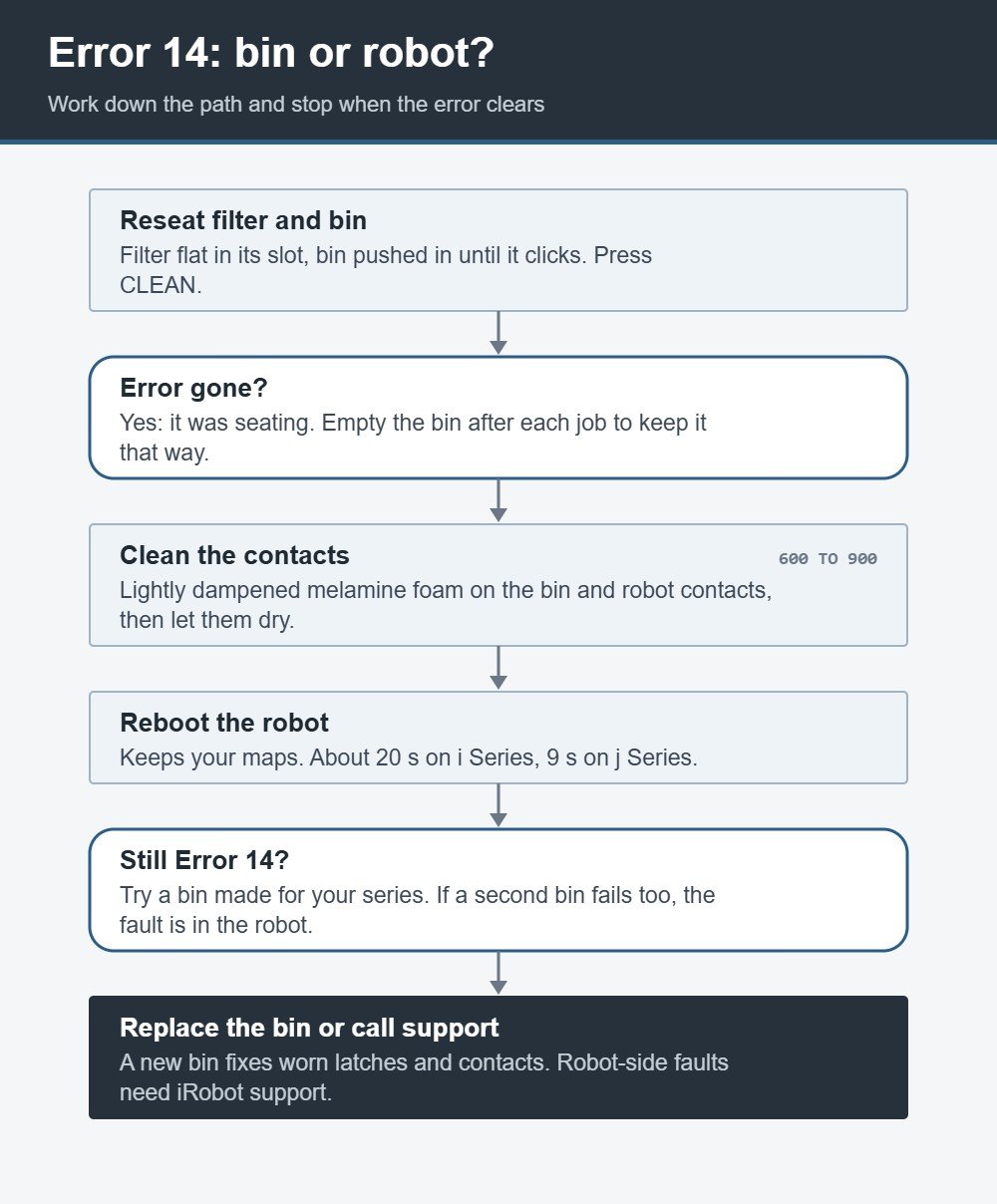
Roomba Error 14 means the robot cannot detect its dust bin. Take the bin out, check that the filter is clean and fitted the right way, push the bin back in until it clicks, then press CLEAN. If the error returns, wipe the metal contacts on the bin and inside the robot with lightly dampened melamine foam, reboot the robot, and replace the bin if the message still comes back.
Roomba Error 14 is one of the most common messages iRobot owners see, and in most homes it takes less than five minutes to clear. This guide explains how each series reports it, the order of checks that iRobot’s support team uses, and how to tell a dirty contact from a bin that has reached the end of its life.
Table of Contents
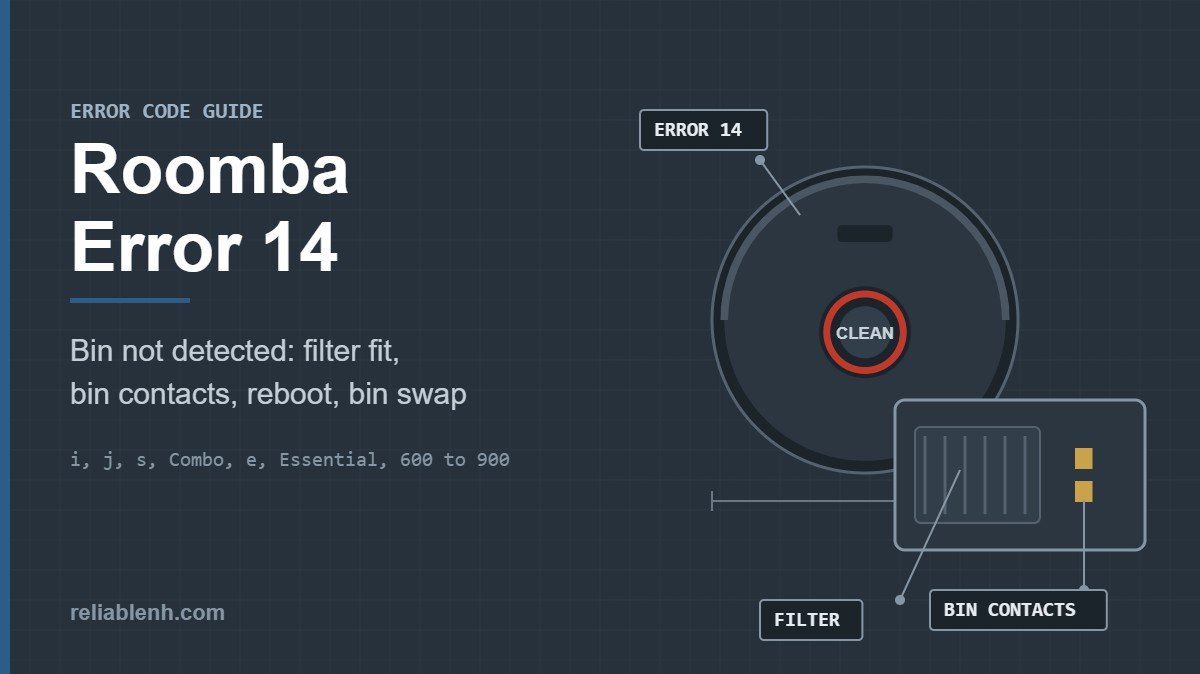
What Roomba Error 14 Means
Every Roomba checks for its bin before and during a cleaning job. The bin closes the airflow path, holds the filter and, on many models, reports its presence through small metal contacts that touch matching contacts inside the bin slot. When that check fails, the robot stops and reports Error 14 instead of running with an open air path.
The cause is rarely electronic. A filter that sits a few millimeters proud, a bin that did not latch after emptying, or a thin film of dust on the contacts is enough to break the check. That is why the same short routine fixes the error on almost every series.
| Series | How Error 14 shows up | First thing to check |
|---|---|---|
| i, j, s and Combo 10 Max | Red light ring, voice message and an Error 14 alert in the app | Filter fitted in the bin, bin fully seated |
| 600, 700, 800 and 900 | Voice says “Error one four”, troubleshooting and full-bin lights come on | Bin seated, then the bin contacts |
| e Series and Essential | Error 14, bin not detected | Put the bin back in and press CLEAN |
| 2025 models (Mini, 100 to 800) | Bin not detected message | Clean filter installed, listen for the click |
If your robot shows a different number, the full list of codes and what they point to is in our Roomba error code tables.
How to Fix Roomba Error 14, Step by Step
Work through the steps in this order. Each one rules out a cause before you move to the next, so stop as soon as the robot starts a job without the message.

- Remove and empty the bin. Press the bin release and slide the bin out. Empty it over a trash can. A packed bin can push the filter out of position. Our guide on how to empty a Roomba shows the release button for each design.
- Check the filter. Take the filter out, tap the dust off and look at the frame. It has to sit flat in its slot with the pleats facing the right way. A filter left out after cleaning is a common trigger, because several series refuse to run without it. Replace a filter that is torn or bent. The routine is in how to clean a Roomba filter.
- Reseat the bin firmly. Slide the bin straight back in and push until you hear or feel a click. On the 2025 lineup iRobot specifically tells owners to listen for that click.
- Press CLEAN. If the robot starts, the problem was seating. If Error 14 returns, continue.
- Wipe the contacts. Clean the metal contacts on the bin and the matching contacts inside the robot, as described in the next section.
- Reboot the robot. A reboot clears a stuck sensor reading and keeps your maps. Hold times for each series are in our Roomba reboot guide. A factory reset does not help with Roomba Error 14, so keep it for the situations listed in how to reset Roomba.
- Try another bin or replace it. If the error survives all of the above, iRobot’s next step is a replacement bin made for your series.
Clean the Bin Contacts on 600, 700, 800 and 900 Robots
On the older series, Roomba Error 14 most often comes from the contacts. Fine dust, pet dander and humidity leave a dull film that stops the current from passing even though the bin is fully in place. iRobot’s fix is simple.
- Switch the robot off and take out the bin.
- Find the metal contacts on the side of the bin and the matching contacts inside the bin slot of the robot.
- Lightly dampen a melamine sponge (a Magic Eraser works). It should feel damp, not wet.
- Rub each contact on the bin and on the robot until the metal looks bright.
- Let everything dry for a few minutes, then reinstall the bin and press CLEAN.
Avoid spraying cleaner into the bin slot. Liquid can run into the robot and cause new faults. If the contacts look bent, pitted or corroded rather than dirty, cleaning will not help, and a new bin is the next step.
Error 14 on i, j, s and Combo 10 Max Robots
On the newer robots, iRobot ties Error 14 closely to the filter. The i Series error chart calls it “bin not detected” and points you to the filter, which has to be in place inside the bin. The j Series and Combo 10 Max chart adds two more steps: confirm that both the filter and the bin are installed, then reboot the robot. On a j Series that means holding CLEAN for about 9 seconds; on an i Series, about 20 seconds.
Two habits cause most repeat cases on these models:
- Refitting the filter at an angle. The filter slides into guides. If one edge rides on top of a guide, the bin closes but the robot reads it as open.
- Closing the bin door with debris in the seal. Hair or a small stone caught in the bin door stops the bin from sitting flush. Run a finger around the seal before you reinstall it.
If you own a robot that empties itself into a Clean Base, the bin is handled more often than on a manual robot, which adds wear to its latch. Our overview of self-emptying robot vacuums explains how those bases work.
Roomba Error 14 on the 2025 Lineup
For the Roomba Mini, 100, 200, Plus 400 to 600 and Max 700 and 800 models, iRobot’s guidance is short: make sure the filter is clean and installed correctly, then reinstall the bin until you hear it click into place. iRobot’s article for these models does not include a contact-cleaning step, so if the click is there and the message stays, reboot the robot and contact iRobot support.
Is It the Bin or the Robot?
When Roomba Error 14 keeps coming back, the question is whether to buy a bin or call support. These quick tests narrow it down.
| What you notice | What it points to | Next step |
|---|---|---|
| The error clears after wiping the contacts | Dirty contacts | Wipe them monthly with melamine foam |
| The error appears only after you empty the bin | Bin or filter not fully seated | Reseat the filter, push the bin until it clicks |
| The bin latch feels loose or the bin wobbles | Worn or cracked latch | Replace the bin with one made for your series |
| A second bin of the right type also triggers Error 14 | A fault on the robot side | Reboot, then contact iRobot support |
| The error started after fitting a third-party bin | The robot does not recognize the bin | Go back to the original bin type |
Bins are made for a specific series. A bin that fits the slot physically can still miss the contacts or the latch on another series, so match the bin to your model number. If you are unsure which series you own, the model number on the underside of the robot tells you.
On an older 600 or 800 Series robot, Roomba Error 14 sometimes arrives at the same time as other signs of age, such as short run time and worn brushes. If the bin, the filter and the battery all need replacing, add up the cost before ordering parts. Our notes on how long a Roomba battery lasts and our comparison of which Roomba model is the best help with that decision.
Errors That Look Like Error 14
Several messages involve the bin or filter. They need different fixes, so read the number carefully.
| Code | Meaning | Fix |
|---|---|---|
| Error 8 | Suction is too weak | Empty the bin, tap out or swap the filter, look for a blockage |
| Error 14 | Bin not detected | Reseat the filter and bin, clean the contacts |
| Error 26 | The vacuum stalled, often from a clogged filter | Swap or tap out the filter and clear the air path |
| Error 36 | The full-bin sensor still reads full after emptying | Empty the bin again and wipe its sensors |
| Red sweep to the rear of the ring | Bin is full | Empty the bin |
If the brushes also stop turning while one of these errors shows, hair may be blocking the airflow at the cleaning head. The fix for that is in Roomba brush not spinning.
How to Keep Error 14 From Coming Back
Error 14 is mostly a maintenance message, so a small routine prevents it.
- Empty the bin after each job. A full bin pushes on the filter and the door.
- Tap out the filter every week (twice weekly with pets) and fit a new one about every two months, the interval iRobot gives for the i Series.
- Wipe the bin contacts on older series once a month, at the same time as the charging contacts.
- Handle the bin gently. Dropping it onto a hard floor can crack the latch, and a cracked latch causes intermittent Error 14 that is hard to trace.
If the robot also stops charging properly after you clean the contacts, the charging side needs attention too. Our guide to a Roomba that won’t charge covers those contacts and errors.
Roomba Error 14 FAQ
What does Roomba Error 14 mean?
It means the robot cannot detect its dust bin. The bin may not be fully seated, the filter may be missing or crooked, or the contacts between the bin and the robot may be dirty.
Why does my Roomba say Error 14 when the bin is in?
The robot checks more than the bin’s position. A filter that is not flat in its slot or a film of dust on the bin contacts can make a seated bin read as missing. Reseat the filter, clean the contacts and push the bin until it clicks.
Can a dirty filter cause Error 14?
Yes. iRobot asks owners to confirm the filter is clean and installed correctly as part of the Error 14 fix. A filter packed with dust can also sit slightly out of position.
How do I clean the contacts on a Roomba bin?
Switch the robot off, take out the bin and rub the metal contacts on the bin and inside the robot with lightly dampened melamine foam. Let them dry before reinstalling the bin.
Does rebooting fix Roomba Error 14?
Sometimes. A reboot clears a stuck sensor reading and keeps your maps. Do it after reseating the filter and bin, not instead of those checks.
Do I need a new bin for Error 14?
Only if the error continues after you reseat the filter and bin, clean the contacts and reboot. At that point iRobot suggests a replacement bin made for your series.
Can I use a bin from another Roomba model?
It is not a good idea. Bins are designed for each series, and a bin from another model can miss the contacts or the latch, which triggers Error 14.
Is Error 14 the same as the bin full warning?
No. Error 14 means the bin is not detected. A full bin shows as a red sweep toward the rear of the light ring on newer models, and Error 36 means the full-bin sensor did not clear after emptying.
Sources
Reliable Technologies is an independent site with no connection to iRobot, and Roomba is an iRobot Corporation trademark. The fixes above follow these iRobot support articles:
