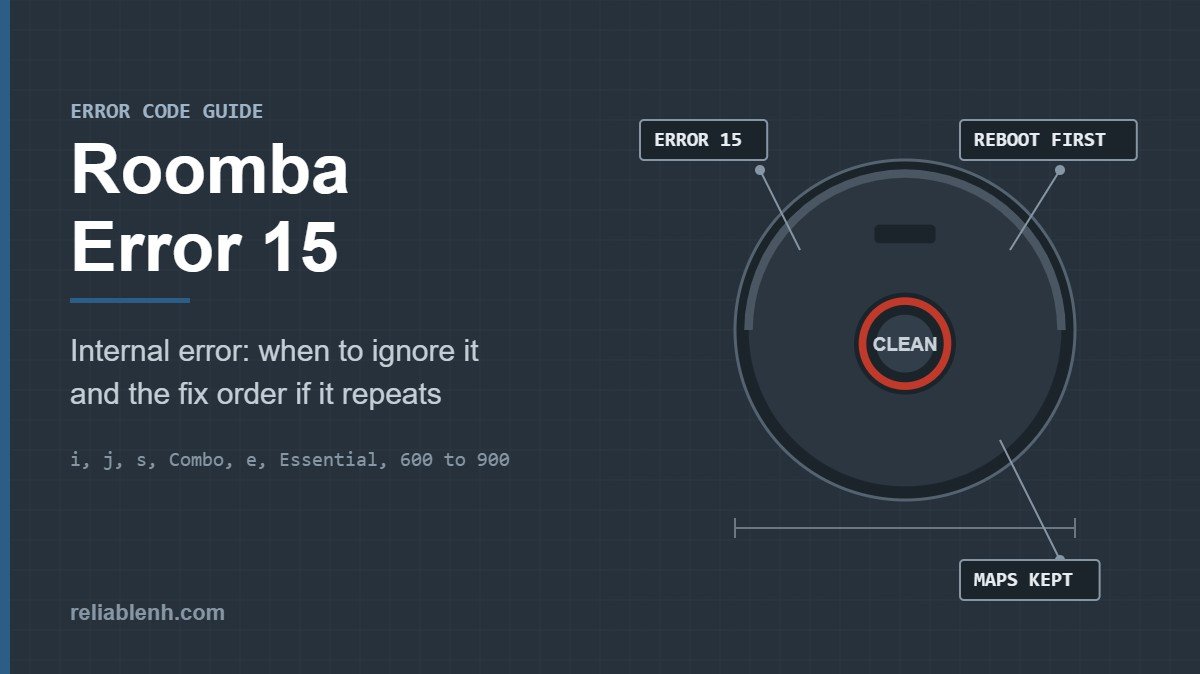
Roomba Error 15 means the robot had an internal error and recovered from it on its own; iRobot says no troubleshooting is needed when it happens once, and it is expected right after the battery has been removed and reinstalled. Press CLEAN and carry on. If Error 15 appears on every job, reboot the robot, then take the battery out for ten seconds, then roll the Smart Map back to an earlier version, and only after that delete the maps or factory reset.
Roomba Error 15 sounds alarming because the message gives no part to check. In practice it is an after-the-fact notice. This guide explains when you can ignore it, the exact order of fixes iRobot gives when it repeats, the known software issue on some Combo models, and what to have ready if you need iRobot Customer Care.
Table of Contents
What Roomba Error 15 Means
iRobot describes Error 15 as an internal error that the robot was able to handle by itself. The robot is telling you about it afterward. Unlike Error 14 or Error 2, there is no bin to reseat or brush to clean, which is why the usual advice for numbered errors does not apply here.
The same message appears across Roomba series and on Braava jet mops, and iRobot’s support pages give one shared set of steps for it. What matters is how often you see it.
| When you see it | What it means | What to do |
|---|---|---|
| Once, then the robot works normally | A one-off internal error that the robot already handled | Nothing. Press CLEAN to continue. |
| On power-up after the battery was removed | Expected behavior, nothing is wrong | Press CLEAN and use the robot as usual. |
| On every job, stopping cleaning | Something keeps triggering the error | Follow the fix order below, starting with a reboot. |
| Only during room-specific jobs on a Combo j7 or j9 | A software issue iRobot flagged on version 23.53.7 | Update the robot, or use a map from an earlier job. |
When You Can Ignore Error 15
Two situations need no action at all. The first is a single Error 15 after which the robot finishes its job or starts the next one normally. The second is the message that appears when the robot powers up after a battery change, a battery reseat or any time the battery was taken out. iRobot calls this expected behavior.
That second case catches many owners who have just fitted a new battery and think the replacement is faulty. It is not. Press CLEAN and let the robot run. If you are planning a battery swap, our Roomba battery replacement guide covers the removal steps, and how long a Roomba battery lasts explains when a swap is due.
Track How Often Roomba Error 15 Appears
The line between “ignore it” and “fix it” is frequency, so it pays to know the pattern before you start deleting maps. Open the job History in the app after each run for a week and note which jobs ended with Roomba Error 15. Three questions sort most cases:
- Does it follow battery work? One message after a battery change is expected and can be ignored.
- Does it appear on every job, or only some? iRobot’s fix order is meant for an error that shows up on every job and gets in the way of cleaning.
- Is it tied to one kind of job? An error that appears only during room-specific jobs points to map data or the Combo software issue described below, not to the robot’s hardware.
A short log also saves time if you end up talking to Customer Care, because it answers their first questions before they ask.
How to Fix Roomba Error 15 That Keeps Coming Back
If Roomba Error 15 shows up on every cleaning job, iRobot lists a specific sequence. Each step is a little more disruptive than the one before, so test the robot after each step and stop when the error clears.
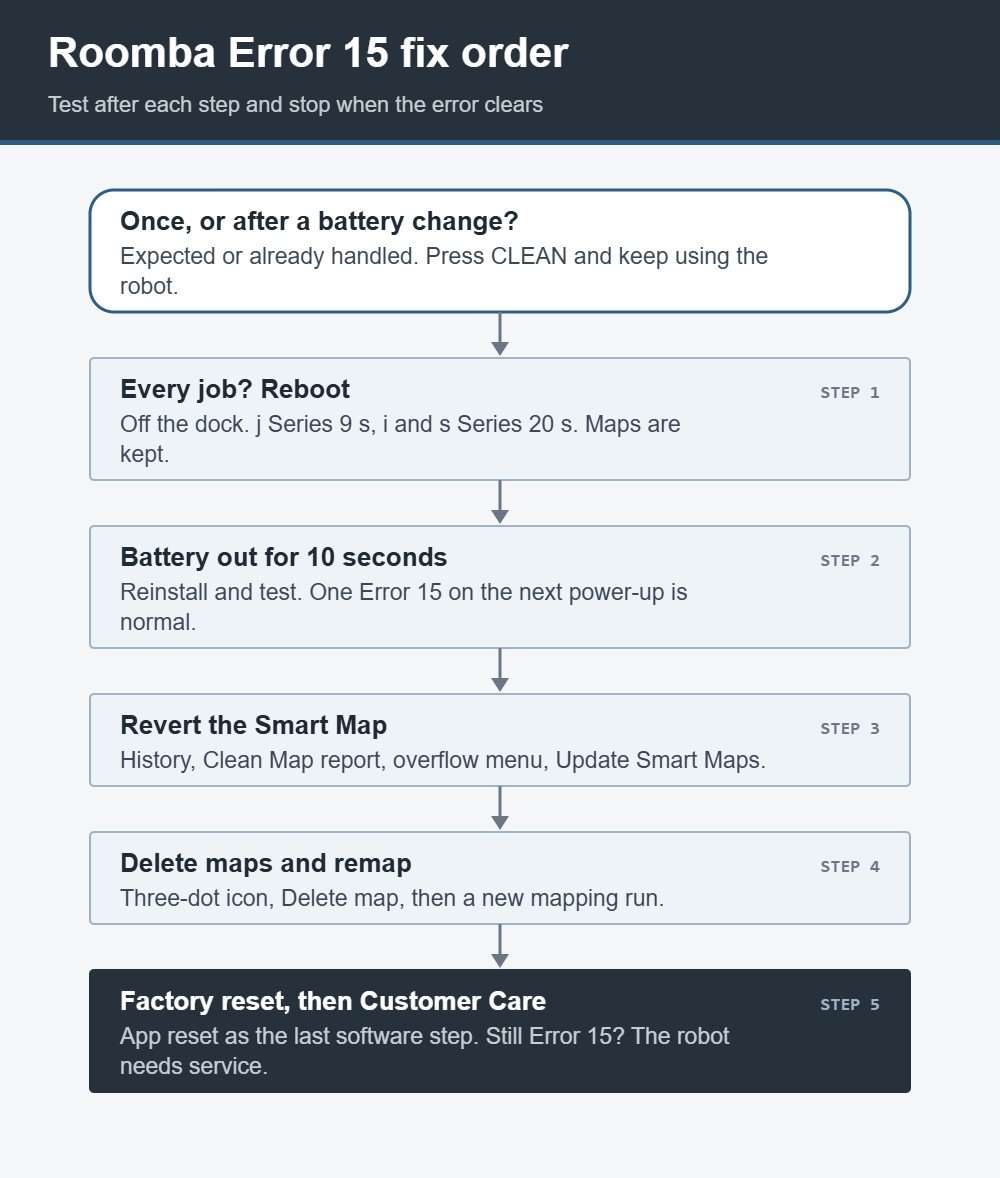
- Reboot the robot. A reboot keeps maps and schedules. On a j Series robot, press and hold the button for 9 seconds and release it; the light ring swirls white for up to a minute and a half, and the reboot is done when the ring goes dark.
- Remove the battery. Take the battery out, wait ten seconds, reinstall it and test again. Expect one Error 15 on the next power-up; that one is normal.
- Revert the Smart Map. Roll the map back to a version from an earlier job (steps below).
- Delete the maps and remap. Remove all Smart Maps and let the robot build a new one.
- Factory reset from the app. Use this only after the steps above. Our guide on how to reset Roomba shows the app path and explains what a reset erases.
- Contact iRobot Customer Care. If Error 15 survives a reset, the robot needs service.
Reboot hold times by series
Take the robot off its dock first. The button and hold time depend on the series:
| Series | Hold | Time |
|---|---|---|
| j Series, Combo 10 Max | CLEAN | 9 seconds |
| i Series, s Series | CLEAN | 20 seconds |
| Wi-Fi 800 and 900 | CLEAN | 10 seconds |
| Roomba Essential | HOME with SPOT | Around 12 seconds |
| e Series and non-Wi-Fi 500 to 700 | HOME with SPOT | Around 10 seconds |
The full list, including the 2025 models and the 600 Series robots that reboot by removing the battery, is in our Roomba reboot guide.
How to revert a Smart Map
Mapping robots store a Smart Map that updates after jobs. If a recent update went wrong, an older version can stop the error. In the app:
- Open History and look through the Clean Map reports from earlier jobs.
- Pick a job whose map looks right, with rooms and walls where they should be.
- Tap the overflow menu (the three dots) in the top right corner.
- Choose Update Smart Maps, then run another job.
How to delete Smart Maps and remap
If an older map does not help, remove the maps completely. Open each map you want to delete, tap the three-dot icon and choose Delete map. Then start a new mapping run. Room names, Keep Out Zones and room-based schedules have to be set up again afterward, so note them first. Our guide to Roomba models with mapping explains how the robots build and store these maps.
Error 15 on Combo j7 and j9: The 23.53.7 Software Issue
In 2024 iRobot flagged a known issue on the Roomba Combo j9 and Combo j7 running software version 23.53.7. On that version, Error 15 occurred during directed room cleaning jobs, while Clean Everywhere jobs were not affected. iRobot’s workaround was to pick a Clean Map from a job before June 24, 2024, or to delete the maps and remap, and it said a later software release would fix the issue.
If you own one of these robots and still see Error 15 only when you send it to specific rooms, check the software version in the app and install any update offered. Updates need the robot online, so if it keeps dropping off your network, sort that out first with our Roomba Wi-Fi troubleshooting guide.
What Keeps Triggering Roomba Error 15?
iRobot does not publish a list of the internal faults behind Error 15. Its fix order does point to three areas, and thinking about them helps you judge the next step:
| Area | Fix that targets it | Sign this was the cause |
|---|---|---|
| Software state | Reboot | The error stops after the reboot |
| Power connection | Battery out for ten seconds | The error stops after the battery reseat |
| Map data | Revert or delete the Smart Map | The error appeared after a map update or only during room jobs |
| The robot itself | Factory reset, then Customer Care | The error continues after a reset |
Error 15 belongs to a group of internal codes, such as 21, 25, 34 and 1003, where a reboot is the usual first step. The meaning of each is listed in our Roomba error code tables. If the robot shows a numbered error that names a part, such as Roomba Error 14 for the bin, treat that part first.
If the Robot Will Not Start After Error 15
Now and then Roomba Error 15 is followed by a robot that does not respond to CLEAN at all. Before treating that as a deeper fault, check the basics in this order:
- Put the robot on its Home Base and confirm it shows a charging light. A flat battery after a long job looks like a dead robot. Our guide to Roomba charging lights shows what each light means.
- Reboot it with the hold time for its series, off the dock, and wait for the startup swirl to finish.
- Reseat the battery and wait ten seconds before reinstalling it, then expect one Error 15 on power-up.
If the robot still does not wake after a full charge and a reboot, that is a separate power problem rather than Error 15, and it is worth contacting iRobot with the details.
Before You Contact iRobot Support
If Error 15 keeps coming back after a factory reset, iRobot asks you to contact Customer Care. You get a faster answer with three things ready:

- The robot, charged and next to you, so you can run tests while on the call or chat.
- The serial number, printed on the label on the underside of the robot.
- Proof of purchase from an authorized retailer, if you want a warranty claim.
It also helps to write down when the error appears (start of a job, during a room job, after docking) and which steps you have already tried. If the robot also has trouble returning to its base, note that too and check our Roomba won’t dock guide, since a dock problem is handled separately.
Roomba Error 15 FAQ
What does Error 15 mean on a Roomba?
It means the robot had an internal error and was able to take care of it. iRobot says you do not need to troubleshoot a single occurrence.
Why does my Roomba show Error 15 after I changed the battery?
Removing and reinstalling the battery makes the robot report Error 15 when it powers up. iRobot describes this as expected. Press CLEAN and use the robot normally.
How do I clear Roomba Error 15?
Press CLEAN to continue. If the error returns on every job, reboot the robot, remove the battery for ten seconds, revert the Smart Map, delete the maps and remap, and factory reset only as the last of those steps.
Does Error 15 mean my Roomba is broken?
Usually not. A one-off Error 15 is a notice, not a fault. Only an error that continues after a factory reset points to a robot that needs service.
Will rebooting delete my map?
No. A reboot keeps maps, schedules and preferences. Reverting or deleting a Smart Map and a factory reset are the steps that change map data.
Why does Error 15 happen only when I clean specific rooms?
On Combo j7 and j9 robots running software 23.53.7, iRobot reported Error 15 during directed room jobs. Update the robot, or select a Clean Map from an earlier job.
How long does a Roomba take to reboot?
On a j Series, the white swirl that shows the robot is starting can last up to a minute and a half. The reboot is complete when the light ring turns off.
What should I have ready before calling iRobot about Error 15?
Have the robot charged and with you, its serial number from the underside label, and proof of purchase if you are making a warranty claim.
Sources
Reliable Technologies is not connected with iRobot, and Roomba and Braava jet are iRobot Corporation trademarks. The steps above follow these iRobot support pages:
