• Skip to main content
  • Skip to primary sidebar

Reliable Technologies - reliablenh.com

Let Reliable Technologies bring comfort, coziness, and convenience to your house with the review for all kinds of home products you may need. Don’t miss out!

  • ECOVACS
  • LeapFrog/LeapPad
  • Roomba Vacuum
  • Samsung
You are here: Home / Samsung / Samsung POWERbot R7065 Review: The All-Inclusive Robot Vacuum

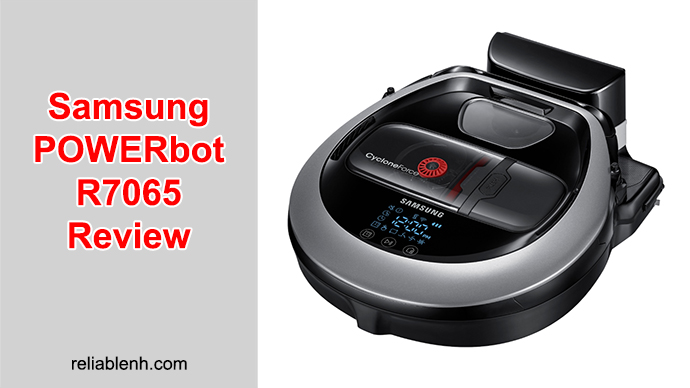
Samsung POWERbot R7065 Review: The All-Inclusive Robot Vacuum

By Jaskaran Curtis | Last updated on May 18, 2026

πŸ“‹ Table of Contents

  1. How Long Does a Roomba Battery Last?
  2. 5 Signs Your Roomba Battery Needs Attention
  3. Battery Light Indicators β€” What Each Color Means
  4. How to Reset & Recalibrate Your Roomba Battery
  5. 7 Tips to Extend Your Roomba Battery Lifespan
  6. How to Replace Your Roomba Battery (Step-by-Step)
  7. Which Battery Type for Your Roomba Model
  8. Best Replacement Batteries (2026 Recommendations)
  9. OEM vs. Third-Party Batteries β€” What’s the Real Difference?
  10. FAQ

1. How Long Does a Roomba Battery Last?

Roomba battery lifespan depends on two factors: battery chemistry and usage patterns.

Battery Type Found In Expected Lifespan Runtime Per Charge
Lithium-Ion (Li-ion) i3, i4, i7, i8, j7, j9, e5, e6, Combo series, some newer 600/800 2–3 years / ~400–500 cycles 60–120 minutes
Nickel-Metal Hydride (NiMH) Older 500, 600, 700, 800 series 1.5–2 years / ~300 cycles 60–90 minutes

These numbers assume regular use (3–5 cleaning sessions per week). Ironically, Roombas that sit unused for weeks at a time tend to have shorter battery lives than ones used daily β€” lithium-ion batteries prefer regular charge-discharge cycles over long idle periods.

πŸ’‘ Did You Know?
The Roomba 900 series (960, 980) has a software-imposed runtime limit regardless of remaining battery capacity. Even with a brand-new battery, these models cap cleaning at approximately 75–120 minutes before returning to dock. This is by design, not a battery issue.

2. Five Signs Your Roomba Battery Needs Attention

Before you spend money on a replacement, identify which of these signs apply to your situation. Some can be fixed with a simple reset:

Sign #1: Runtime has dropped significantly. If your Roomba used to clean for 60+ minutes and now dies after 20–30 minutes, the battery is losing capacity. Try a calibration cycle first β€” if runtime doesn’t improve after 3 cycles, replacement is needed.

Sign #2: Roomba won’t hold a charge on the dock. You place it on the Home Base, the light shows “charging,” but when you start a job it dies within minutes. This usually means the battery cells have degraded beyond recovery. Time to replace.

Sign #3: Error 18 keeps appearing. Error 18 specifically indicates a charging failure. After cleaning the charging contacts (on both the robot and the dock), if Error 18 persists, the battery’s internal resistance has increased too much to accept a charge. See our Roomba troubleshooting guide for more on error codes.

Sign #4: The battery is physically swollen. If you remove the battery and notice any bulging, puffing, or deformation β€” stop using it immediately. A swollen lithium-ion battery is a safety hazard. Dispose of it at a battery recycling center (most home improvement stores accept them) and replace.

Sign #5: Roomba is completely unresponsive. No lights, no sounds, no reaction to pressing CLEAN β€” even when plugged into the charger. This could be a dead battery or a mainboard issue. Try a known-good battery first to rule out the cheaper fix.

3. Battery Light Indicators β€” What Each Color Means

Roomba communicates battery status through the light ring around the CLEAN button. Here’s what each signal means across different model generations:

Light Signal 500/600 Series 700/800/900 Series i/j/Combo Series
Solid Green Fully charged Fully charged Fully charged (press CLEAN to check)
Solid Green Charging Charging (shows 60s at start of cycle) Charging
Solid Amber Partially discharged Partially discharged Partially discharged
Solid Red Nearly dead Nearly dead Nearly dead
Flashing Red Battery depleted Battery depleted Error β€” check app
No Light While Docked Problem β€” should blink every 4s Normal after 60s Normal β€” press CLEAN once to check
Rapid Flashing Red 16-hour refresh charge in progress (normal maintenance β€” do not interrupt)
πŸ“Œ Important:
On the i/j/Combo series,
no light while charging is normal
. This confuses many owners who think the robot isn’t charging. Simply press the CLEAN button once β€” the light will briefly show the current battery status, then turn off again.

Charging Error Blink Codes (All Series)

Blink Pattern Meaning What to Do
1 blink Battery not connected Remove and reseat battery. Check terminals for corrosion.
2 blinks Charging error Clean charging contacts. Try a different outlet.
3 blinks Charging error (persistent) Perform battery reset cycle. If still failing, replace battery.
5 blinks Charging system error Reboot Roomba (hold CLEAN 20s). Try different charger/base.
6 blinks Battery overheating Let Roomba cool down in a ventilated area. Avoid charging near heat sources.
7 blinks Battery too warm or too cold Move to room temperature (60–80Β°F / 15–27Β°C). Wait 1 hour, retry.
8 blinks Lithium-ion battery communication error Reboot Roomba. If persistent, battery may need replacement.
9 blinks Lithium-ion battery error Contact iRobot support or replace battery.

4. How to Reset & Recalibrate Your Roomba Battery

A battery calibration (often called “battery reset”) reconditions the battery’s charge memory and can restore lost runtime. This is the single most effective free fix for a Roomba that’s losing stamina. Try this before buying a replacement.

Calibration Cycle β€” Works on All Models

1
Fully Drain the Battery

Start a cleaning job and let the Roomba run until it completely dies on its own. Don’t press CLEAN or DOCK β€” let it drain to zero. If Roomba returns to dock automatically, pick it up off the dock and restart the cleaning job until the battery is truly empty.

2
Charge Uninterrupted for 3+ Hours

Place the dead Roomba on the charging dock. Do not touch any buttons. Let it charge for at least 3 full hours without interruption β€” even if the light turns green before that. For older NiMH models, iRobot actually recommends charging for up to 16 hours during the first calibration.

3
Repeat 2–3 Times

Run another full drain β†’ full charge cycle. Do this 2–3 times total. Each cycle helps the battery’s internal gauge recalibrate and can recover capacity that the software was no longer accessing.

4
Evaluate Runtime

After 3 calibration cycles, run a normal cleaning job and note the runtime. If it’s improved to within 70–80% of original, the battery is still healthy. If runtime hasn’t improved at all, the battery cells are genuinely degraded and need replacement.

Software Reset by Series

In addition to the calibration cycle, a software-level reset can clear battery-related error states:

Roomba Series Battery Software Reset
500 & 600 (no WiFi) Hold CLEAN + SPOT + DOCK for 10 seconds until you hear a beep. Then do a full drain-charge cycle.
700 & 800 Hold CLEAN for 10 seconds until “rSt” appears on display. Then do a full drain-charge cycle.
i3, i4, i7, i8, j7, j9, Combo Hold CLEAN for 20 seconds. Wait for restart. Then do a full drain-charge cycle.

For a more detailed walkthrough of all reset types, see our complete How to Reset Roomba guide.

5. Seven Tips to Extend Your Roomba Battery Lifespan

These practices can add 6–12 months of extra life to your Roomba battery:

Tip #1: Use your Roomba regularly. Running it 3–5 times per week keeps lithium-ion cells healthy. Long idle periods accelerate degradation. This is the single most important habit.

Tip #2: Keep it on the dock when not in use. For daily/weekly use, leave Roomba on the Home Base. The built-in charging circuit manages trickle charging to prevent overcharging. This is safe and recommended by iRobot.

Tip #3: Remove the battery for long storage. If you won’t use the Roomba for more than 2 weeks, remove the battery and store it separately in a cool, dry place. Charge it to approximately 50% before storage β€” storing at full charge or zero charge both accelerate degradation.

Tip #4: Avoid extreme temperatures. Never leave your Roomba or its dock near heating vents, in direct sunlight, in a garage during summer, or in any space above 100Β°F (38Β°C) or below 32Β°F (0Β°C). Heat is the #1 enemy of lithium-ion cells.

Tip #5: Keep the brushes and filter clean. Clogged filters and tangled extractors force the motors to work harder, drawing more power and draining the battery faster. Clean extractors weekly and replace filters every 2 months.

Tip #6: Clean the charging contacts monthly. Dirty contacts cause incomplete charging β€” the battery never reaches full capacity, which leads to shorter runtimes that mimic battery degradation. Wipe contacts with a dry cloth or rubbing alcohol.

Tip #7: Run a calibration cycle every 3 months. Even on a healthy battery, doing a full drain β†’ full charge cycle quarterly helps maintain accurate capacity readings and prevents premature “battery low” warnings.

⚠️ Don’t Do This:
Some websites recommend putting your Roomba battery in the freezer to “revive” it.
Never do this.
Freezing a lithium-ion battery can cause internal damage, electrolyte leakage, and even fire risk. Freezing NiMH batteries is also ineffective and risky.

6. How to Replace Your Roomba Battery (Step-by-Step)

Replacing a Roomba battery takes about 5 minutes with a single Phillips-head screwdriver. No special tools needed.

For i, j, e, and Combo Series

1
Prepare

Power off your Roomba and flip it over on a soft surface (towel or carpet) to avoid scratching the top.

2
Remove the Side Brush

Unscrew the single screw holding the 3-arm side brush. Pull the side brush off and set it aside.

3
Remove the Bottom Plate

Unscrew the 5 screws securing the bottom plate. Lift the plate off to reveal the battery compartment.

4
Remove the Old Battery

The battery sits in a rectangular compartment. Pull the tab (if present) or gently lift the battery out. Note the orientation of the terminals β€” there are alignment tabs that ensure correct installation.

5
Install the New Battery

Place the new battery in the same orientation β€” label and tabs facing up. It should sit flush with no gaps. Do not force it β€” if it doesn’t fit smoothly, check the model compatibility.

6
Reassemble

Replace the bottom plate and all 5 screws. Reattach the side brush. Be careful not to pinch the side brush wire under the plate.

7
Calibrate the New Battery

Place Roomba on the dock and charge for 3 hours minimum. Then run a full drain-charge cycle (as described in the reset section) 2–3 times to calibrate the new battery for optimal performance.

For 500, 600, 700, and 800 Series

The process is similar but slightly different:

1
Access the Battery

Flip the Roomba over. On the 700/800/900 series, unscrew the 2 screws on the battery door (located in the center-bottom). On the 500/600 series, remove the bottom cover screws (usually 4) to access the battery.

2
Swap and Reassemble

Lift out the old battery, insert the new one with terminals aligned, and screw the cover back on. Do the calibration cycle as described above.

πŸ’‘ Pro Tip:
When swapping batteries, take a moment to clean the battery terminal contacts (on both the robot and the battery) with rubbing alcohol. Also clean the inside of the battery compartment β€” dust accumulation here can create resistance and reduce charging efficiency.

7. Which Battery Type for Your Roomba Model

Not all Roomba batteries are interchangeable. Using the wrong type can damage your robot. Here’s the compatibility breakdown:

Roomba Model Battery Type Part Numbers Voltage / Capacity
j7, j7+, j9, j9+, Combo j7+, Combo j9+ Lithium-Ion ABL-D2, ABL-D2A, ABL-D2B 14.4V / 1800–2200mAh
i3, i3+, i4, i4+, i7, i7+, i8, i8+ Lithium-Ion ABL-D1, ABL-D2, 4624864 14.4V / 1800–2200mAh
e5, e6 Lithium-Ion ABL-D1 14.4V / 1800mAh
960, select 600 & 800 (with Li-ion) Lithium-Ion 1800LI, 4376392 14.4V / 1800mAh
980 Lithium-Ion 4376392 14.4V / 3300mAh
500, 600 (older), 700, 800 (NiMH models) NiMH (upgradable to Li-ion) R3 / XLife Extended Life 14.4V / 1800–3300mAh
⚠️ Compatibility Warning:The RoombaCombo j7+andCombo j9+use a different battery form factor than the standard j7+ and j9+. Do not assume j-series batteries are interchangeable between vacuum-only and Combo models. Always verify your exact model number before purchasing.

8. Best Replacement Batteries β€” 2026 Recommendations

For Roomba i/j/e/Combo Series (Lithium-Ion)

πŸ”‹ iRobot Genuine Lithium-Ion Battery (ABL-D1/D2)

The official iRobot replacement. Guaranteed perfect compatibility, accurate charge reporting in the iRobot app, and no firmware conflicts. Compatible with i3, i3+, i4, i4+, i7, i7+, i8, i8+, j7, j7+ (vacuum-only), e5, e6.

  • βœ… 100% guaranteed compatibility β€” no firmware issues
  • βœ… Accurate battery level reporting in iRobot Home app
  • βœ… ~400–500 charge cycles expected lifespan
  • βœ… 14.4V / 1800mAh β€” matches OEM spec exactly
  • ⚠️ Not compatible with Combo j7+ or Combo j9+

Check Price on Amazon β†’

πŸ”‹ Third-Party Alternative: ABL-D2A Compatible Battery

For budget-conscious buyers, third-party ABL-D2 compatible batteries offer the same capacity at 40–50% less cost. Look for brands with built-in BMS (Battery Management System) protection β€” over-charge, over-discharge, over-temperature protection.

  • βœ… 30–50% cheaper than OEM
  • βœ… Compatible with same i/j/e models
  • βœ… Up to 500 recharge cycles (reputable brands)
  • ⚠️ Battery level may not report 100% accurately in app
  • ⚠️ Quality varies by brand β€” stick to well-reviewed options

Check Price on Amazon β†’

For Roomba Combo j7+, Combo j9+, and j9+

πŸ”‹ iRobot Genuine Battery for Combo j7+/j9+ & Select j9+

These Combo models use a unique battery form factor. Currently, only iRobot’s official battery is available. Third-party options are limited due to the newer design.

  • βœ… Only guaranteed option for Combo j7+/j9+
  • βœ… Available directly from iRobot.com and Amazon

Check Price on Amazon β†’

For Roomba 500/600/700/800/900 Series

πŸ”‹ Best Upgrade: Lithium-Ion Battery (Replaces NiMH)

If your older Roomba came with a NiMH battery, the single best upgrade you can make is switching to a lithium-ion replacement. You’ll get 2–3x the cycle life, no memory effect, and longer runtime. These work with the existing Roomba charger β€” no modifications needed.

  • βœ… 14.4V / 4400–6400mAh capacity (vs. 1800–3300mAh NiMH)
  • βœ… Up to 1000 charge cycles (vs. ~300 for NiMH)
  • βœ… No memory effect β€” charge anytime without capacity loss
  • βœ… Built-in BMS protection on reputable brands
  • βœ… Compatible with 500, 600, 700, 800, and 900 series
  • ⚠️ Some 900 series models have software runtime limits regardless of battery capacity

Recommended brands: Tenergy (3850mAh NiMH or 4400mAh Li-ion), SPARKOLE (5200–5300mAh Li-ion), TenHutt (6000mAh Li-ion), JUNWOOD (6400mAh Li-ion).

Check Lithium Upgrade Prices β†’

πŸ”‹ Budget NiMH: Tenergy 3850mAh (500/600/700/800 Series)

If you prefer to stick with NiMH chemistry, Tenergy’s 3850mAh battery is the most reliable option. Comes with a bonus accessory pack (side brushes + cleaning tool) and a 12-month warranty.

  • βœ… Low self-discharge β€” holds charge during storage
  • βœ… No memory effect
  • βœ… Up to 1000 recharge cycles
  • βœ… Includes bonus brushes and cleaning comb
  • βœ… 12-month manufacturer warranty

Check Price on Amazon β†’

9. OEM vs. Third-Party Batteries β€” What’s the Real Difference?

This is the question every Roomba owner asks before buying a replacement. Here’s the honest breakdown:

Factor OEM (iRobot Genuine) Third-Party (Reputable Brand)
Price Higher (check Amazon for current price) 30–50% less than OEM
Compatibility 100% guaranteed 99% β€” rare fit issues on new models
App Integration Full β€” accurate battery % in app Mostly works β€” % may be slightly off
Capacity Standard (1800–3300mAh) Often higher (4400–6400mAh)
Safety Certifications UL Listed Varies β€” look for UL, CE, or FCC certified
Warranty iRobot warranty Typically 12–18 months from manufacturer
Risk of Error 5 None Rare but possible β€” especially with cheap Li-ion in NiMH models

Our recommendation: For the i/j/e series, go with the OEM battery if you can afford it β€” the app integration and guaranteed compatibility are worth the premium on higher-end robots. For older 500–800 series models, third-party lithium-ion upgrades are actually better than OEM because they provide substantially more capacity and cycle life at a lower price.

10. Frequently Asked Questions

❓ Can I upgrade my old Roomba from NiMH to lithium-ion?
Yes, for 500, 600, 700, and 800 series. Third-party lithium-ion replacement batteries are designed to work with the existing Roomba charger and dock. They include their own internal charging circuit (BMS) that manages the lithium cells properly. No modifications to the robot are needed β€” it’s a direct drop-in swap. Runtime typically increases from ~60 minutes to 120–180 minutes.
❓ My Roomba charges on the dock but dies immediately when cleaning starts. What’s wrong?
This almost always means the battery cells can no longer hold a charge under load. The battery accepts voltage (showing “charged”) but collapses under the power draw of the motors and vacuum. A calibration cycle is worth trying once, but this symptom usually means the battery needs replacement.
❓ How do I dispose of my old Roomba battery safely?
Never throw Roomba batteries in regular trash. Both lithium-ion and NiMH batteries should be recycled. Drop-off locations: Home Depot, Lowe’s, Best Buy, Batteries Plus, or any Call2Recycle partner. If the battery is swollen or damaged, place it in a non-flammable container (like a metal bucket) and bring it to a hazardous waste collection site.
❓ Will replacing the battery void my Roomba’s warranty?
Using an iRobot genuine battery will not void the warranty. Using a third-party battery technically may, but in practice iRobot’s warranty only covers the first year, and most batteries don’t need replacement until year 2–3 anyway. If your robot is still under warranty and the battery is failing, contact iRobot support first β€” they may replace it for free.
❓ Should I leave my Roomba on the charger all the time?
Yes, for regular daily/weekly use. iRobot specifically designs its charging system to maintain the battery safely on the dock. The charger switches to trickle mode once full. The only exception: if you’re storing the robot for 2+ weeks, remove the battery and store it at ~50% charge in a cool place.
❓ What is the “16-hour charge” my Roomba sometimes does?
This is a refresh charge β€” an automatic battery conditioning cycle built into Roomba’s firmware. It happens periodically (typically after several regular charge cycles) and is designed to maintain battery health. The CLEAN button light will flash rapidly during this process. Do not interrupt it β€” let it complete. Your Roomba will resume normal operation afterward.

Related Guides

  • Roomba Troubleshooting Guide 2026: Diagnose All Error Codes
  • How to Reset Roomba β€” Step-by-Step for Every Series
  • Roomba Won’t Charge β€” 4 Best Tips to Fix Instantly
  • How Do I Know If My Roomba Is Charging?
  • Best Roomba for Small Apartment
  • How Much Is a Roomba in 2026?
πŸ“Œ Last Updated:May 2026. Battery recommendations, model compatibility, and pricing are reviewed monthly. iRobot was acquired by Picea Robotics in February 2026 β€” all replacement parts and support remain available as of this update.

⚠️ Don’t Do This:
Some websites recommend putting your Roomba battery in the freezer to “revive” it.
Never do this.
Freezing a lithium-ion battery can cause internal damage, electrolyte leakage, and even fire risk. Freezing NiMH batteries is also ineffective and risky.

6. How to Replace Your Roomba Battery (Step-by-Step)

Replacing a Roomba battery takes about 5 minutes with a single Phillips-head screwdriver. No special tools needed.

For i, j, e, and Combo Series

1

Prepare

Power off your Roomba and flip it over on a soft surface (towel or carpet) to avoid scratching the top.

2

Remove the Side Brush

Unscrew the single screw holding the 3-arm side brush. Pull the side brush off and set it aside.

3

Remove the Bottom Plate

Unscrew the 5 screws securing the bottom plate. Lift the plate off to reveal the battery compartment.

4

Remove the Old Battery

The battery sits in a rectangular compartment. Pull the tab (if present) or gently lift the battery out. Note the orientation of the terminals β€” there are alignment tabs that ensure correct installation.

5

Install the New Battery

Place the new battery in the same orientation β€” label and tabs facing up. It should sit flush with no gaps. Do not force it β€” if it doesn’t fit smoothly, check the model compatibility.

6

Reassemble

Replace the bottom plate and all 5 screws. Reattach the side brush. Be careful not to pinch the side brush wire under the plate.

7

Calibrate the New Battery

Place Roomba on the dock and charge for 3 hours minimum. Then run a full drain-charge cycle (as described in the reset section) 2–3 times to calibrate the new battery for optimal performance.

For 500, 600, 700, and 800 Series

The process is similar but slightly different:

1

Access the Battery

Flip the Roomba over. On the 700/800/900 series, unscrew the 2 screws on the battery door (located in the center-bottom). On the 500/600 series, remove the bottom cover screws (usually 4) to access the battery.

2

Swap and Reassemble

Lift out the old battery, insert the new one with terminals aligned, and screw the cover back on. Do the calibration cycle as described above.

πŸ’‘ Pro Tip:When swapping batteries, take a moment to clean the battery terminal contacts (on both the robot and the battery) with rubbing alcohol. Also clean the inside of the battery compartment β€” dust accumulation here can create resistance and reduce charging efficiency.

7. Which Battery Type for Your Roomba Model

Not all Roomba batteries are interchangeable. Using the wrong type can damage your robot. Here’s the compatibility breakdown:

Roomba Model Battery Type Part Numbers Voltage / Capacity
j7, j7+, j9, j9+, Combo j7+, Combo j9+ Lithium-Ion ABL-D2, ABL-D2A, ABL-D2B 14.4V / 1800–2200mAh
i3, i3+, i4, i4+, i7, i7+, i8, i8+ Lithium-Ion ABL-D1, ABL-D2, 4624864 14.4V / 1800–2200mAh
e5, e6 Lithium-Ion ABL-D1 14.4V / 1800mAh
960, select 600 & 800 (with Li-ion) Lithium-Ion 1800LI, 4376392 14.4V / 1800mAh
980 Lithium-Ion 4376392 14.4V / 3300mAh
500, 600 (older), 700, 800 (NiMH models) NiMH (upgradable to Li-ion) R3 / XLife Extended Life 14.4V / 1800–3300mAh
⚠️ Compatibility Warning:The RoombaCombo j7+andCombo j9+use a different battery form factor than the standard j7+ and j9+. Do not assume j-series batteries are interchangeable between vacuum-only and Combo models. Always verify your exact model number before purchasing.

8. Best Replacement Batteries β€” 2026 Recommendations

For Roomba i/j/e/Combo Series (Lithium-Ion)

πŸ”‹ iRobot Genuine Lithium-Ion Battery (ABL-D1/D2)

The official iRobot replacement. Guaranteed perfect compatibility, accurate charge reporting in the iRobot app, and no firmware conflicts. Compatible with i3, i3+, i4, i4+, i7, i7+, i8, i8+, j7, j7+ (vacuum-only), e5, e6.

  • βœ… 100% guaranteed compatibility β€” no firmware issues
  • βœ… Accurate battery level reporting in iRobot Home app
  • βœ… ~400–500 charge cycles expected lifespan
  • βœ… 14.4V / 1800mAh β€” matches OEM spec exactly
  • ⚠️ Not compatible with Combo j7+ or Combo j9+

Check Price on Amazon β†’

πŸ”‹ Third-Party Alternative: ABL-D2A Compatible Battery

For budget-conscious buyers, third-party ABL-D2 compatible batteries offer the same capacity at 40–50% less cost. Look for brands with built-in BMS (Battery Management System) protection β€” over-charge, over-discharge, over-temperature protection.

  • βœ… 30–50% cheaper than OEM
  • βœ… Compatible with same i/j/e models
  • βœ… Up to 500 recharge cycles (reputable brands)
  • ⚠️ Battery level may not report 100% accurately in app
  • ⚠️ Quality varies by brand β€” stick to well-reviewed options

Check Price on Amazon β†’

For Roomba Combo j7+, Combo j9+, and j9+

πŸ”‹ iRobot Genuine Battery for Combo j7+/j9+ & Select j9+

These Combo models use a unique battery form factor. Currently, only iRobot’s official battery is available. Third-party options are limited due to the newer design.

  • βœ… Only guaranteed option for Combo j7+/j9+
  • βœ… Available directly from iRobot.com and Amazon

Check Price on Amazon β†’

For Roomba 500/600/700/800/900 Series

πŸ”‹ Best Upgrade: Lithium-Ion Battery (Replaces NiMH)

If your older Roomba came with a NiMH battery, the single best upgrade you can make is switching to a lithium-ion replacement. You’ll get 2–3x the cycle life, no memory effect, and longer runtime. These work with the existing Roomba charger β€” no modifications needed.

  • βœ… 14.4V / 4400–6400mAh capacity (vs. 1800–3300mAh NiMH)
  • βœ… Up to 1000 charge cycles (vs. ~300 for NiMH)
  • βœ… No memory effect β€” charge anytime without capacity loss
  • βœ… Built-in BMS protection on reputable brands
  • βœ… Compatible with 500, 600, 700, 800, and 900 series
  • ⚠️ Some 900 series models have software runtime limits regardless of battery capacity

Recommended brands: Tenergy (3850mAh NiMH or 4400mAh Li-ion), SPARKOLE (5200–5300mAh Li-ion), TenHutt (6000mAh Li-ion), JUNWOOD (6400mAh Li-ion).

Check Lithium Upgrade Prices β†’

πŸ”‹ Budget NiMH: Tenergy 3850mAh (500/600/700/800 Series)

If you prefer to stick with NiMH chemistry, Tenergy’s 3850mAh battery is the most reliable option. Comes with a bonus accessory pack (side brushes + cleaning tool) and a 12-month warranty.

  • βœ… Low self-discharge β€” holds charge during storage
  • βœ… No memory effect
  • βœ… Up to 1000 recharge cycles
  • βœ… Includes bonus brushes and cleaning comb
  • βœ… 12-month manufacturer warranty

Check Price on Amazon β†’

9. OEM vs. Third-Party Batteries β€” What’s the Real Difference?

This is the question every Roomba owner asks before buying a replacement. Here’s the honest breakdown:

Factor OEM (iRobot Genuine) Third-Party (Reputable Brand)
Price Higher (check Amazon for current price) 30–50% less than OEM
Compatibility 100% guaranteed 99% β€” rare fit issues on new models
App Integration Full β€” accurate battery % in app Mostly works β€” % may be slightly off
Capacity Standard (1800–3300mAh) Often higher (4400–6400mAh)
Safety Certifications UL Listed Varies β€” look for UL, CE, or FCC certified
Warranty iRobot warranty Typically 12–18 months from manufacturer
Risk of Error 5 None Rare but possible β€” especially with cheap Li-ion in NiMH models

Our recommendation: For the i/j/e series, go with the OEM battery if you can afford it β€” the app integration and guaranteed compatibility are worth the premium on higher-end robots. For older 500–800 series models, third-party lithium-ion upgrades are actually better than OEM because they provide substantially more capacity and cycle life at a lower price.

10. Frequently Asked Questions

❓ Can I upgrade my old Roomba from NiMH to lithium-ion?
Yes, for 500, 600, 700, and 800 series. Third-party lithium-ion replacement batteries are designed to work with the existing Roomba charger and dock. They include their own internal charging circuit (BMS) that manages the lithium cells properly. No modifications to the robot are needed β€” it’s a direct drop-in swap. Runtime typically increases from ~60 minutes to 120–180 minutes.
❓ My Roomba charges on the dock but dies immediately when cleaning starts. What’s wrong?
This almost always means the battery cells can no longer hold a charge under load. The battery accepts voltage (showing “charged”) but collapses under the power draw of the motors and vacuum. A calibration cycle is worth trying once, but this symptom usually means the battery needs replacement.
❓ How do I dispose of my old Roomba battery safely?
Never throw Roomba batteries in regular trash. Both lithium-ion and NiMH batteries should be recycled. Drop-off locations: Home Depot, Lowe’s, Best Buy, Batteries Plus, or any Call2Recycle partner. If the battery is swollen or damaged, place it in a non-flammable container (like a metal bucket) and bring it to a hazardous waste collection site.
❓ Will replacing the battery void my Roomba’s warranty?
Using an iRobot genuine battery will not void the warranty. Using a third-party battery technically may, but in practice iRobot’s warranty only covers the first year, and most batteries don’t need replacement until year 2–3 anyway. If your robot is still under warranty and the battery is failing, contact iRobot support first β€” they may replace it for free.
❓ Should I leave my Roomba on the charger all the time?
Yes, for regular daily/weekly use. iRobot specifically designs its charging system to maintain the battery safely on the dock. The charger switches to trickle mode once full. The only exception: if you’re storing the robot for 2+ weeks, remove the battery and store it at ~50% charge in a cool place.
❓ What is the “16-hour charge” my Roomba sometimes does?
This is a refresh charge β€” an automatic battery conditioning cycle built into Roomba’s firmware. It happens periodically (typically after several regular charge cycles) and is designed to maintain battery health. The CLEAN button light will flash rapidly during this process. Do not interrupt it β€” let it complete. Your Roomba will resume normal operation afterward.

Related Guides

  • Roomba Troubleshooting Guide 2026: Diagnose All Error Codes
  • How to Reset Roomba β€” Step-by-Step for Every Series
  • Roomba Won’t Charge β€” 4 Best Tips to Fix Instantly
  • How Do I Know If My Roomba Is Charging?
  • Best Roomba for Small Apartment
  • How Much Is a Roomba in 2026?
πŸ“Œ Last Updated:May 2026. Battery recommendations, model compatibility, and pricing are reviewed monthly. iRobot was acquired by Picea Robotics in February 2026 β€” all replacement parts and support remain available as of this update.

Filed Under: Samsung

Avatar for Jaskaran Curtis

About Jaskaran Curtis

Jaskaran Curtis is the executive editor of Reliable Technologies. Back then, he’s had the experience of coordinating a group of approximately 20 editors and writers based in New York. He is the professional of studying and analyzing the latest products in technology area. He's started his career as an editor since 2008.

Reader Interactions

Leave a Reply Cancel reply

Your email address will not be published. Required fields are marked *

This site uses Akismet to reduce spam. Learn how your comment data is processed.

Primary Sidebar

Related Posts

  • Samsung POWERbot R7070 Review: Most Powerful Cleaning Robot
  • Samsung POWERbot R9250 Review: A Robot Vacuum With High Power
  • Samsung POWERbot R7090 Review: Best Cleaning Performance

Quick LinksToggle Table of ContentToggle

    • πŸ“‹ Table of Contents
  • 1. How Long Does a Roomba Battery Last?
  • 2. Five Signs Your Roomba Battery Needs Attention
  • 3. Battery Light Indicators β€” What Each Color Means
    • Charging Error Blink Codes (All Series)
  • 4. How to Reset & Recalibrate Your Roomba Battery
    • Calibration Cycle β€” Works on All Models
    • Software Reset by Series
  • 5. Seven Tips to Extend Your Roomba Battery Lifespan
  • 6. How to Replace Your Roomba Battery (Step-by-Step)
    • For i, j, e, and Combo Series
    • For 500, 600, 700, and 800 Series
  • 7. Which Battery Type for Your Roomba Model
  • 8. Best Replacement Batteries β€” 2026 Recommendations
    • For Roomba i/j/e/Combo Series (Lithium-Ion)
      • πŸ”‹ iRobot Genuine Lithium-Ion Battery (ABL-D1/D2)
      • πŸ”‹ Third-Party Alternative: ABL-D2A Compatible Battery
    • For Roomba Combo j7+, Combo j9+, and j9+
      • πŸ”‹ iRobot Genuine Battery for Combo j7+/j9+ & Select j9+
    • For Roomba 500/600/700/800/900 Series
      • πŸ”‹ Best Upgrade: Lithium-Ion Battery (Replaces NiMH)
      • πŸ”‹ Budget NiMH: Tenergy 3850mAh (500/600/700/800 Series)
  • 9. OEM vs. Third-Party Batteries β€” What’s the Real Difference?
  • 10. Frequently Asked Questions
  • Related Guides
  • 6. How to Replace Your Roomba Battery (Step-by-Step)
    • For i, j, e, and Combo Series
      • Prepare
      • Remove the Side Brush
      • Remove the Bottom Plate
      • Remove the Old Battery
      • Install the New Battery
      • Reassemble
      • Calibrate the New Battery
    • For 500, 600, 700, and 800 Series
      • Access the Battery
      • Swap and Reassemble
  • 7. Which Battery Type for Your Roomba Model
  • 8. Best Replacement Batteries β€” 2026 Recommendations
    • For Roomba i/j/e/Combo Series (Lithium-Ion)
      • πŸ”‹ iRobot Genuine Lithium-Ion Battery (ABL-D1/D2)
      • πŸ”‹ Third-Party Alternative: ABL-D2A Compatible Battery
    • For Roomba Combo j7+, Combo j9+, and j9+
      • πŸ”‹ iRobot Genuine Battery for Combo j7+/j9+ & Select j9+
    • For Roomba 500/600/700/800/900 Series
      • πŸ”‹ Best Upgrade: Lithium-Ion Battery (Replaces NiMH)
      • πŸ”‹ Budget NiMH: Tenergy 3850mAh (500/600/700/800 Series)
  • 9. OEM vs. Third-Party Batteries β€” What’s the Real Difference?
  • 10. Frequently Asked Questions
  • Related Guides

Home | Contact us | Privacy | Terms | RSS | Linkedin | Twitter | Yelp | Yellowpages | Buzzfile

Copyright © 2026. Reliable Technologies All rights reserved.
As an Amazon Associate I earn from qualifying purchases.